ਜਿਸ ਕੇ ਸਿਰ ਉੱਪਰ ਤੂੰ ਸੁਆਮੀ " ਸੋ ਦੁੱਖ ਕੈਸਾ ਪਾਵੈ ♥ . .
ਹੇ ਪਰਮਾਤਮਾ ਸਭ ਦਾ ਭਲਾ ਕਰੀ l
Monday, 1 April 2013

ਸੋਹਣੀਏ Drug ਵਾਗੂ ਰਚੀ ਹੋਈ ਐ
ਸਾਹ 'ਚ ਸਹਿਕਦੀਏ,ਦਿਲ 'ਚ ਧੜਕਦੀਏ, ਲੋਕੀ ਆਖਦੇ ਨੇ ਮੇਰੇ ਨਾਲ ਫਸੀ ਹੋਈ ਐ,
☠☠ ਨੀ ਤੂੰ ਜੱਟ ਦੇ Blood ਵਿੱਚ, ਸੋਹਣੀਏ Drug ਵਾਗੂ ਰਚੀ ਹੋਈ ਐ ☠☠
☠☠ ਨੀ ਤੂੰ ਜੱਟ ਦੇ Blood ਵਿੱਚ, ਸੋਹਣੀਏ Drug ਵਾਗੂ ਰਚੀ ਹੋਈ ਐ ☠☠
Tuesday, 26 March 2013
free gprs with latest working proxies in airtel 2013
Proxy : 99.158.160.201 or 67.208.113.125
Port : 80
Acess Point : 80
Home Page : d.airtelworld.com or any free homepage working in your area
Restart your Mobile after applying this setting in your Handset. Make your current balance less than Rs 1 so to avoid balance deduction.
Port : 80
Acess Point : 80
Home Page : d.airtelworld.com or any free homepage working in your area
Restart your Mobile after applying this setting in your Handset. Make your current balance less than Rs 1 so to avoid balance deduction.
ਕਿਉਕਿ ਬਚਾਰੇ 'ਬਾਪ' ਨੂੰ ਤਾਂ 'ਮਾਂ' ਬੋਲਣ ਹੀ ਨਹੀ ਦਿੰਦੀ
ਤੁਹਾਨੂੰ ਪਤਾ ਸਾਡੀ ਆਪਣੀ ਭਾਸ਼ਾ ਨੂੰ 'ਮਾਂ ਬੋਲੀ' ਕਿਉ ਕਹਿੰਦੇ ਨੇ !!
ਕਿਉਕਿ ਬਚਾਰੇ 'ਬਾਪ' ਨੂੰ ਤਾਂ 'ਮਾਂ' ਬੋਲਣ ਹੀ ਨਹੀ ਦਿੰਦੀ....
ਕਿਉਕਿ ਬਚਾਰੇ 'ਬਾਪ' ਨੂੰ ਤਾਂ 'ਮਾਂ' ਬੋਲਣ ਹੀ ਨਹੀ ਦਿੰਦੀ....
ਜਾਨ ਨਿੱਕਲੀ ਜਾਦੀ ਏ ਮੇਰੀ ਜਾਨ ਤੋ ਬਿਨਾ.
ਨੀ ਤੂੰ ਕਿਵੇ ਸਾਹ ਲੈਨੀ ਏ ਹਾਏ 'ਮਾਨ' ਤੋ ਬਿਨਾ,
ਜਾਨ ਨਿੱਕਲੀ ਜਾਦੀ ਏ ਮੇਰੀ ਜਾਨ ਤੋ ਬਿਨਾ....
ਜਾਨ ਨਿੱਕਲੀ ਜਾਦੀ ਏ ਮੇਰੀ ਜਾਨ ਤੋ ਬਿਨਾ....
ਜ਼ਖਮ ਜੋ ਦਿੱਤਾ ਸੱਜਣਾ ਸਾਡਿਆ ਨੇ
ਜ਼ਖਮ ਜੋ ਦਿੱਤਾ ਸੱਜਣਾ ਸਾਡਿਆ ਨੇ....ਓਹ ਨਾ ਸਾਥੋਂ ਧੋ ਹੋਇਆ,
ਜੋ ਰਾਂਝੇ ਨਾਲ ਵੀ ਨਾ ਹੋਇਆ....ਤੇਰੇ ਯਾਰ ਨਾਲ ਤਾਂ ਓਹ ਹੋਇਆ,
ਓਹ ਡੋਲੀ ਚੜਦੀ ਤਿਲਕ ਗਈ....ਨਾ ਹੱਸ ਹੋਇਆ ਨਾ ਰੋ ਹੋਇਆ...
ਜੋ ਰਾਂਝੇ ਨਾਲ ਵੀ ਨਾ ਹੋਇਆ....ਤੇਰੇ ਯਾਰ ਨਾਲ ਤਾਂ ਓਹ ਹੋਇਆ,
ਓਹ ਡੋਲੀ ਚੜਦੀ ਤਿਲਕ ਗਈ....ਨਾ ਹੱਸ ਹੋਇਆ ਨਾ ਰੋ ਹੋਇਆ...
ਗੁੜ ਨਾਲੋ ਇਸ਼ਕ ਮਿੱਠਾ
ਕੇ ਗੁੜ ਨਾਲੋ ਇਸ਼ਕ ਮਿੱਠਾ ਉਏ ਹੋਏ,
ਓਹ ਰੱਬਾ ਲੱਗ ਨਾ ਕਿਸੇ ਨੂੰ ਜਾਵੇ....
ਕੇ ਗੁੜ ਨਾਲੋ ਇਸ਼ਕ ਮਿੱਠਾ....
ਓਹ ਰੱਬਾ ਲੱਗ ਨਾ ਕਿਸੇ ਨੂੰ ਜਾਵੇ....
ਕੇ ਗੁੜ ਨਾਲੋ ਇਸ਼ਕ ਮਿੱਠਾ....
Tuesday, 12 March 2013
Earn money sending sms. Earn upto Rs.150 per day.
Sunday, 10 March 2013
How to Create a Bootable USB Pen Drive with Windows XP, Vista / 7
No doubt that files can be transferred via pen drives but what if the need arises to reinstall the Operating System in case of a system crash or if the requirement is to install the new Windows 7? What then? How would it be if you upgrade or re-install your Windows OS via a flash drive? There are a number of ways in which you can load or install Windows XP, Vista or Windows 7 from the USB Pen Drive. I am going to show you the easiest way to
create your own bootable pen drive.
create your own bootable pen drive.
To begin with you will need a PC with a CD/DVD ROM drive, the Windows CD/DVD, and a 2GB pen drive if you are creating a Windows XP bootable USB or a 4GB pen drive if the requirement is for creating a bootable Windows Vista/7 USB drive. To start with, download and extract the program – WinToFlash. Once extracted execute the file called “WinToFlash” and follow these simple steps.
- Click the ‘Windows Setup transfer wizard’ and select ‘Next’.


- Here you will need to define two paths where the ‘Windows File Path’ points to the location of the Windows installation disk and the ‘USB Drive’ specifies the location of pen drive that will be used for creating the bootable installation routine. Click on ‘Select’ and choose an appropriate path for both.
- Accept the ‘Windows License Agreement’ and click on continue.
- Don’t panic! The ‘Warning’ is just to remind you that the pen drive will be formatted before proceeding. Click ‘OK’ to proceed or ‘Cancel’ in case you inserted the wrong pen drive or want to check it.
That’s all that needs to be done to be able to create a bootable Windows installation pen drive. To be able to boot from the pen drive you will need to access the BIOS and change the boot priority to ‘Removable disk’. If the settings are right you will be able to boot and proceed with the installation of Windows.
ਜ਼ਿੰਦਗੀ ਦੇ ਵਿੱਚ ਕਿੰਨੀਆਂ ਹੀ ਆਈਆਂ ਸੀ ਹਨੇਰੀਆਂ
ਜ਼ਿੰਦਗੀ ਦੇ ਵਿੱਚ ਕਿੰਨੀਆਂ ਹੀ ਆਈਆਂ ਸੀ ਹਨੇਰੀਆਂ,
ਸਦਾ ਬਚਦੇ ਰਹੇ ਹਾਂ ਮਾਲਕਾ ਰਹਿਮਤਾਂ ਨੇ ਤੇਰੀਆਂ.......ੴ
ਸਦਾ ਬਚਦੇ ਰਹੇ ਹਾਂ ਮਾਲਕਾ ਰਹਿਮਤਾਂ ਨੇ ਤੇਰੀਆਂ.......ੴ
ਜੇ ਤਖਤ ਨਹੀਂ, ਤਾਜ਼ ਨਹੀਂ, ਤਾਂ ਕਿੰਗ ਨਹੀਂ ...
ਜੇ ਤਖਤ ਨਹੀਂ, ਤਾਜ਼ ਨਹੀਂ, ਤਾਂ ਕਿੰਗ ਨਹੀਂ ...
ਜੇ ਕੇਸ ਨਹੀਂ,ਦਸਤਾਰ ਨਹੀਂ, ਤਾਂ ਸਿੰਘ ਨਹੀਂ ....!!>
ਜੇ ਕੇਸ ਨਹੀਂ,ਦਸਤਾਰ ਨਹੀਂ, ਤਾਂ ਸਿੰਘ ਨਹੀਂ ....!!>
ਹੋਣ ਜਿਦਾਂ ਦੇ ਹਲਾਤ ਬੰਦਾ ਉਦਾਂ ਦਾ ਹੋ ਜਾਂਦਾ
ਹੋਣ ਜਿਦਾਂ ਦੇ ਹਲਾਤ ਬੰਦਾ ਉਦਾਂ ਦਾ ਹੋ ਜਾਂਦਾ...!
ਕਦੇ ਚੋਪੜੀ ਵੀ ਸਿੱਟੇ, ਕਦੇ ਸੁੱਕੀਆਂ ਵੀ ਖਾਂਦਾ...!
ਕਦੇ ਚੋਪੜੀ ਵੀ ਸਿੱਟੇ, ਕਦੇ ਸੁੱਕੀਆਂ ਵੀ ਖਾਂਦਾ...!
ਇਕ ਪਿਆਰੀ ਅਰਦਾਸ)
ਇਕ ਪਿਆਰੀ ਅਰਦਾਸ)
ਹੇ ਸੱਚੇ ਪਾਤਸ਼ਾਹ ਤੂੰ ਸਾਡੇ ਜਿਸਮ ਤੇਸਾਡੀ ਰੂਹ ਨੂੰ
ਨੇਕ ਕਰਦੇ,
ਜਿਵੇ "ਤੂੰ" ਚਾਹੇ ਉਵੇ ਹੀ ਕਰਦੇ,
ਸਾਡੇ ਹਰ ਫੈਸਲੇ ਵਿੱਚ ਅਪਨੀ ਰਜਾ ਸਾਮਿਲ ਕਰਦੇ,
ਜੋ ਤੇਰਾ "ਹੁਕਮ" ਹੋਵੇ ਉਵੇ ਸਾਡਾ ਇਰਾਦਾ ਕਰਦੇ,
ਤੇ ਜੋ ਏ "ਦੁਆ" ਨੂੰ ਮੰਨੇ ਤੇਅੱਗੇ ਭੇਜੇ ਉਹਦੀ ਹਰ
ਤੰਮਨਾ ਪੂਰੀ ਕਰਦੇ
ਹੇ ਸੱਚੇ ਪਾਤਸ਼ਾਹ ਤੂੰ ਸਾਡੇ ਜਿਸਮ ਤੇਸਾਡੀ ਰੂਹ ਨੂੰ
ਨੇਕ ਕਰਦੇ,
ਜਿਵੇ "ਤੂੰ" ਚਾਹੇ ਉਵੇ ਹੀ ਕਰਦੇ,
ਸਾਡੇ ਹਰ ਫੈਸਲੇ ਵਿੱਚ ਅਪਨੀ ਰਜਾ ਸਾਮਿਲ ਕਰਦੇ,
ਜੋ ਤੇਰਾ "ਹੁਕਮ" ਹੋਵੇ ਉਵੇ ਸਾਡਾ ਇਰਾਦਾ ਕਰਦੇ,
ਤੇ ਜੋ ਏ "ਦੁਆ" ਨੂੰ ਮੰਨੇ ਤੇਅੱਗੇ ਭੇਜੇ ਉਹਦੀ ਹਰ
ਤੰਮਨਾ ਪੂਰੀ ਕਰਦੇ
ਜਿੰਨੇ ਮਰਜੀ ਸਟਾਈਲਾਂ ਨਾਲ ਵਾਲਾਂ ਨੂੰ ਕਟਾ ਲਈਏ
ਜਿੰਨੇ ਮਰਜੀ ਸਟਾਈਲਾਂ ਨਾਲ ਵਾਲਾਂ ਨੂੰ ਕਟਾ ਲਈਏ,
ਲਾ ਕੇ ਜੈਲ੍ਹਾਂ ਭਾਂਵੇ ਜਿੰਨਾ ਮੋੜ ਕੇ ਖੜ੍ਹਾ ਲਈਏ...
ਪਛਾਣ ਕੌਮ ਦੀ ਕਰਾਵੇ, ਰੋਅਬ ਐਸਾ ਜੋ ਡਰਾਵੇ,
ਜਿੱਦਾਂ ਰੱਖਦਾ ਸੀ ਤੜੀ ਜਿਉਣਾਂ ਮੌੜ ਵੱਖਰੀ...
ਲੱਖ ਤਰਾਂ ਦੀਆਂ ਟੋਪੀਆਂ ਖਰੀਦ ਕੇ ਲਿਆਈਏ ,
ਪਰ ਪੱਗ ਨਾਲ ਹੁੰਦੀ ਯਾਰੋ ਟੌਹਰ ਵੱਖਰੀ...
ਲਾ ਕੇ ਜੈਲ੍ਹਾਂ ਭਾਂਵੇ ਜਿੰਨਾ ਮੋੜ ਕੇ ਖੜ੍ਹਾ ਲਈਏ...
ਪਛਾਣ ਕੌਮ ਦੀ ਕਰਾਵੇ, ਰੋਅਬ ਐਸਾ ਜੋ ਡਰਾਵੇ,
ਜਿੱਦਾਂ ਰੱਖਦਾ ਸੀ ਤੜੀ ਜਿਉਣਾਂ ਮੌੜ ਵੱਖਰੀ...
ਲੱਖ ਤਰਾਂ ਦੀਆਂ ਟੋਪੀਆਂ ਖਰੀਦ ਕੇ ਲਿਆਈਏ ,
ਪਰ ਪੱਗ ਨਾਲ ਹੁੰਦੀ ਯਾਰੋ ਟੌਹਰ ਵੱਖਰੀ...
Tune Up Utilities 2013 With Serial Key

Cleans and optimizes PCs like never before:
NEW TuneUp Disk Cleaner 2013: Wipes system clutter from over
150 popular programs
NEW TuneUp Browser Cleaner 2013: Cleans up 25 browsers
MORE POWERFUL TuneUp Registry Cleaner & TuneUp Shortcut
Cleaner
NEW TuneUp Live Optimization 2.0: Boosts performance of
applications
Discover All New Features
NEW - TuneUp Disk Cleaner 2013
NEW - TuneUp Browser Cleaner 2013
NEW - TuneUp Live Optimization 2.0
STRONGER - TuneUp Shortcut Cleaner
STRONGER - TuneUp Registry Cleaner
Improve Performance and Battery Life
Massive performance loss and unbearable slowdowns dont just
occur on ancient Windows XP machines. As a matter of fact, they
oftentimes hit even the fastest Windows 8 laptops and desktops
around. But not anymore
TuneUp Utilities 2013 takes your PC to the next performance
level, guaranteeing lightning-fast application load times and
extended battery life that can endure even the longest trips
NEW - TuneUp Live Optimization 2.0
Fully automated - TuneUp Program Deactivator
TuneUp Economy Mode
Turbo Mode
Disable startup programs
Accelerate system startup and shutdown
Defragment hard disk
Take Care of Your PC and Data Clutter
The perfect PC cleanup in less than 5 minutes? Now its easier
than ever thanks to TuneUp Utilities 2013 which removes thousands
of megabytes of Windows clutter while refreshing your registry
and deleting massive disk space hogs. The all-in-one maintenance
of TuneUp Utilities 2013 makes sure your PC becomes cleaner and
faster than ever before
NEW - TuneUp Disk Cleaner 2013
NEW - TuneUp Browser Cleaner 2013
STRONGER - TuneUp Registry Cleaner
STRONGER - TuneUp Shortcut Cleaner
1-Click-Maintenance & Automatic Maintenance
Uninstall unneeded programs
Find and Delete Large Amounts of Data
Restore or wipe files securely
Keeping your data private and secure is crucial. TuneUp Utilities
top three tools enable you to restore accidentally deleted files,
clean out data traces from your hard disk, and securely wipe
sensitive files in order to prevent them from falling into the
wrong hands
NEW - TuneUp Disk Cleaner 2013
Restore deleted files
Delete files safely
Analyze and troubleshoot your PC
Tired of calling up PC experts or costly tech hotlines? Then help
yourself with TuneUp Utilities. Its easy-to-use wizards and
diagnostic tools help you find vulnerabilities, errors, and your
PCs untapped performance potential. With TuneUp Utilities youll
get rid of the most annoying Windows problems of all time with
just a few clicks and push your PC to perform better than ever
Show system information
Status & recommendations (category
Optimization status
Increase performance - recommendations
Program rating
Display and close running processes
Detect and fix problems
Check hard disk for errors
Personalize Windows
Bored with the same Windows themes, logon screens or icons
Ready to give your PC a makeover? TuneUp Utilities 2013 offers
unique customization possibilities thatll transform the same old
and boring Windows XP Luna and Windows 7 Aero design to
something new, sleek, and exciting. And once youre done with
that, TuneUp System Control helps you adjust more than 400 hidden
Windows and program settings
Customize the appearance of Windows (TuneUp Styler
Customize options and behaviors (TuneUp System Control
More Great Features
With its elegant and powerful Start Center interface, TuneUp
Utilities guides users through all their optimization steps and
helps them solve issues with their PC, Windows, or 3rd party
software. Thanks to our brand new Settings Center, youll also
have instant access to the most important settings and update
features of TuneUp Utilities 2013. And once youre done, the
Optimization Report provides you with a complete history of
problems solved, tuning steps performed, and data clutter
removed
Start Center
Overview of all functions
TuneUp Utilities Settings Center
Check for Updates
Optimization Report
Fully compatible
Windows XP
Windows Vista
Windows 7
Full Support for Windows 8
Get ready for the future of Windows with the all-new TuneUp
Utilities 2013
Fully optimized for Windows 8
Prevents the gradual slowdown that plagues even the new
Windows 8
Keeps your PC clean from day 1
Installation Notes
Download and Extract Using WinRAR
Run TuneUpUtilities2013_en-US.exe
Complete Installation
Use Patch to Activate Tune Up


Saturday, 9 March 2013
ਹਰ ਮੁੰਡੇ ਨਾਲ ਨਹੀਓ ਯਾਰੀ ਲਾਈ ਦੀ
ਹਰ ਮੁੰਡੇ ਨਾਲ ਨਹੀਓ ਯਾਰੀ ਲਾਈ ਦੀ,
ਥੋੜੀ-ਬਹੁਤੀ ਸੋਹਣਿਓ ਸ਼ਰਮ ਚਾਹੀਦੀ,
ਨੀ ਜਰਾ ਹੱਥ ਤੂੰ ਅਕਲ ਨੂੰ ਮਾਰ,
ਅੱਜ ਸਾਨੂੰ ਦੱਸ ਦੇ ਨੀ ਅੱਜ ਸਾਨੂੰ ਦੱਸ ਦੇ,
ਤੇਰਾ ਕਿੰਨਿਆ ਨਾਲ ਚੱਲਦਾ ਪਿਆਰ,
ਨੀ ਅੱਜ ਸਾਨੂੰ ਦੱਸ ਦੇ,ਨੀ ਅੱਜ ਸਾਨੂੰ....
ਥੋੜੀ-ਬਹੁਤੀ ਸੋਹਣਿਓ ਸ਼ਰਮ ਚਾਹੀਦੀ,
ਨੀ ਜਰਾ ਹੱਥ ਤੂੰ ਅਕਲ ਨੂੰ ਮਾਰ,
ਅੱਜ ਸਾਨੂੰ ਦੱਸ ਦੇ ਨੀ ਅੱਜ ਸਾਨੂੰ ਦੱਸ ਦੇ,
ਤੇਰਾ ਕਿੰਨਿਆ ਨਾਲ ਚੱਲਦਾ ਪਿਆਰ,
ਨੀ ਅੱਜ ਸਾਨੂੰ ਦੱਸ ਦੇ,ਨੀ ਅੱਜ ਸਾਨੂੰ....
ਕਰਕੇ ਬਹਾਨੇ ਨਿੱਤ ਤੇਰੀ ਗਲੀ ਆਉਣਾ
ਕਰਕੇ ਬਹਾਨੇ ਨਿੱਤ ਤੇਰੀ ਗਲੀ ਆਉਣਾ,
ਤੇਰਾ ਲਾਰਿਆ 'ਚ ਰੱਖਣਾ ਕਮਾਲ ਐ,
ਨਿੰਮਾ-ਨਿੰਮਾ ਹੱਸਣਾ ਧਿਆਨ ਜਿਹਾ ਰੱਖਣਾ,
ਚੋਰੀ-ਚੋਰੀ ਤੱਕਣਾ ਕਮਾਲ ਐ....
ਲਾਇਆ ਖਿੱਚ ਕੇ ਨਿਸ਼ਾਨਾ ਪੁੱਤ ਪੱਟ ਤਾ ਬੇਗਾਨਾਂ,
ਜਿਹੜਾ ਕਰਦਾ ਸੀ ਕਦੇ ਸਰਦਾਰੀ....
ਸਮਝ ਨੀ ਆਉਦੀ ਮੈਨੂੰ ਆਖ ਦੇਵਾ ਕਿੱਝ ਤੈਨੂੰ,
ਇਸ਼ਕ ਤੇਰੇ ਨੇ ਮੱਤ ਮਾਰੀ....
ਤੇਰਾ ਲਾਰਿਆ 'ਚ ਰੱਖਣਾ ਕਮਾਲ ਐ,
ਨਿੰਮਾ-ਨਿੰਮਾ ਹੱਸਣਾ ਧਿਆਨ ਜਿਹਾ ਰੱਖਣਾ,
ਚੋਰੀ-ਚੋਰੀ ਤੱਕਣਾ ਕਮਾਲ ਐ....
ਲਾਇਆ ਖਿੱਚ ਕੇ ਨਿਸ਼ਾਨਾ ਪੁੱਤ ਪੱਟ ਤਾ ਬੇਗਾਨਾਂ,
ਜਿਹੜਾ ਕਰਦਾ ਸੀ ਕਦੇ ਸਰਦਾਰੀ....
ਸਮਝ ਨੀ ਆਉਦੀ ਮੈਨੂੰ ਆਖ ਦੇਵਾ ਕਿੱਝ ਤੈਨੂੰ,
ਇਸ਼ਕ ਤੇਰੇ ਨੇ ਮੱਤ ਮਾਰੀ....
ਤੁਸੀ ਪੇਪਰਾਂ ਵਿੱਚੋ ਕਿਸ ਤਰਾਂ ਪਾਸ ਹੁੰਦੇ ਸੀ ਜਾਂ ਹੁੰਦੇ ਹੋ ??
ਤੁਸੀ ਪੇਪਰਾਂ ਵਿੱਚੋ ਕਿਸ ਤਰਾਂ ਪਾਸ ਹੁੰਦੇ ਸੀ ਜਾਂ ਹੁੰਦੇ ਹੋ ??
1. ਚੰਗੀ ਤਰਾਂ ਪੜ ਕੇ
2. ਨਕਲ ਮਾਰ ਕੇ
3. ਪੜ ਕੇ + ਨਕਲ ਮਾਰ ਕੇ
4. ਮਾਸਟਰ ਨੂੰ ਪੈਸੇ ਦੇ ਕੇ
ਸੱਚੀ-ਸੱਚੀ ਦੱਸ ਦਉ ਅੱਜ ਕੂਮੈਟ ਕਰਕੇ ਜੀ ??
1. ਚੰਗੀ ਤਰਾਂ ਪੜ ਕੇ
2. ਨਕਲ ਮਾਰ ਕੇ
3. ਪੜ ਕੇ + ਨਕਲ ਮਾਰ ਕੇ
4. ਮਾਸਟਰ ਨੂੰ ਪੈਸੇ ਦੇ ਕੇ
ਸੱਚੀ-ਸੱਚੀ ਦੱਸ ਦਉ ਅੱਜ ਕੂਮੈਟ ਕਰਕੇ ਜੀ ??
ਗੱਲ ਸੁਣ ਮੇਰੇ ਯਾਰ ਐਨਾ ਕਰੀ ਨਾ ਪਿਆਰ
ਗੱਲ ਸੁਣ ਮੇਰੇ ਯਾਰ ਐਨਾ ਕਰੀ ਨਾ ਪਿਆਰ,
ਮੈਨੂੰ ਯਾਦ ਕਰ ਤੇਤੋਂ ਐਨਾ ਰੋਇਆ ਵੀ ਨੀ ਜਾਣਾ,
ਕੱਠੇ ਰਹਿ ਜੇ ਨਾ ਹੋਇਆ ਦੂਰ ਹੋਇਆ ਵੀ ਨੀ ਜਾਣਾ,
ਕੱਠੇ ਰਹਿ ਜੇ ਨਾ ਹੋਇਆ ਦੂਰ ਹੋਇਆ ਵੀ ਨੀ ਜਾਣਾ,
ਮੈਨੂੰ ਯਾਦ ਕਰ ਤੇਤੋਂ ਐਨਾ ਰੋਇਆ ਵੀ ਨੀ ਜਾਣਾ,
ਕੱਠੇ ਰਹਿ ਜੇ ਨਾ ਹੋਇਆ ਦੂਰ ਹੋਇਆ ਵੀ ਨੀ ਜਾਣਾ,
ਕੱਠੇ ਰਹਿ ਜੇ ਨਾ ਹੋਇਆ ਦੂਰ ਹੋਇਆ ਵੀ ਨੀ ਜਾਣਾ,
ਜ਼ਖਮੀ ਹੈ ਦਿਲ ਸ਼ੇਰ ਦਾ ਹਿਰਨੀ ਨੇ ਮਾਰਿਆ.
ਓ ਜੰਨਤ ਵੱਲ ਨੂੰ ਜਾਣ ਲੱਗੇ ਸੀ ਰੋਹੀਆ ਵੱਲ ਮੁੜ ਕੇ ਆ ਗਏ,
ਪਤਾ ਨਾ ਲੱਗਿਆ ਦਰਦ ਦਿਲਾਂ ਦੇ ਕਿੱਥੋ-ਕਿੱਥੋ ਜੁੜ ਕੇ ਆ ਗਏ,
ਤੂੰ ਤੇ ਸੌ ਗਿਆ ਚੁੱਪ ਵੱਟ ਕੇ ਅੰਬਰ ਦੇ ਤਾਰਿਆ,
ਜ਼ਖਮੀ ਹੈ ਦਿਲ ਸ਼ੇਰ ਦਾ ਹਿਰਨੀ ਨੇ ਮਾਰਿਆ....
ਪਤਾ ਨਾ ਲੱਗਿਆ ਦਰਦ ਦਿਲਾਂ ਦੇ ਕਿੱਥੋ-ਕਿੱਥੋ ਜੁੜ ਕੇ ਆ ਗਏ,
ਤੂੰ ਤੇ ਸੌ ਗਿਆ ਚੁੱਪ ਵੱਟ ਕੇ ਅੰਬਰ ਦੇ ਤਾਰਿਆ,
ਜ਼ਖਮੀ ਹੈ ਦਿਲ ਸ਼ੇਰ ਦਾ ਹਿਰਨੀ ਨੇ ਮਾਰਿਆ....
ਰੋਜ਼ਾਨਾ ਵਿਹਲੇ ਸਮੇ ਤੁਸੀ ਕੀ ਕਰਨਾ ਪਸੰਦ ਕਰਦੇ ਹੋ ??
ਰੋਜ਼ਾਨਾ ਵਿਹਲੇ ਸਮੇ ਤੁਸੀ ਕੀ ਕਰਨਾ ਪਸੰਦ ਕਰਦੇ ਹੋ ??
1.ਗਾਣੇ ਸੁਣਨਾ-ਗਾਣੇ ਗਾਉਣਾ
2.ਆਰਾਮ ਨਾਲ ਸਾਉਣਾ
3.ਤਸਵੀਰਾਂ ਖਿੱਚਣਾ
4.ਮੋਟਰਸਾਇਕਲ-ਕਾਰ ਚਲਾਉਣਾ
5.ਭੰਗਣਾ ਪਾਉਣਾ-ਨੱਚਣਾ
6.ਚਿੱਤਰਕਾਰੀ
7.ਕਿਤਾਬਾਂ ਪੜਨਾ
8.ਖਾਣਾਂ ਬਣਾਉਣਾ
9.ਇੰਟਰਨੈੱਟ ਚਲਾਉਣਾ
10.ਫੋਨ ਤੇ ਗੱਲ ਕਰਨਾ
11.ਕੁੱਝ ਲਿਖਣਾਂ-ਲੇਖ਼ਕੀ
12.ਸੈਰ ਕਰਨਾ-ਘੁੰਮਣਾ
13.ਖੇਡਣਾ-ਕਸਰਤ ਕਰਨਾ
14.ਫੁੱਲ ਲਾਉਣਾ-ਖੇਤੀ ਕਰਨਾ
ਜਾਂ ਕੁੱਝ ਹੋਰ ਕਰਨਾ ਪਸੰਦ ਕਰਦੇ ਹੋ ਕੂਮੈਟ ਕਰਕੇ ਜਰੂਰ ਦੱਸੋ ਜੀ ??
1.ਗਾਣੇ ਸੁਣਨਾ-ਗਾਣੇ ਗਾਉਣਾ
2.ਆਰਾਮ ਨਾਲ ਸਾਉਣਾ
3.ਤਸਵੀਰਾਂ ਖਿੱਚਣਾ
4.ਮੋਟਰਸਾਇਕਲ-ਕਾਰ ਚਲਾਉਣਾ
5.ਭੰਗਣਾ ਪਾਉਣਾ-ਨੱਚਣਾ
6.ਚਿੱਤਰਕਾਰੀ
7.ਕਿਤਾਬਾਂ ਪੜਨਾ
8.ਖਾਣਾਂ ਬਣਾਉਣਾ
9.ਇੰਟਰਨੈੱਟ ਚਲਾਉਣਾ
10.ਫੋਨ ਤੇ ਗੱਲ ਕਰਨਾ
11.ਕੁੱਝ ਲਿਖਣਾਂ-ਲੇਖ਼ਕੀ
12.ਸੈਰ ਕਰਨਾ-ਘੁੰਮਣਾ
13.ਖੇਡਣਾ-ਕਸਰਤ ਕਰਨਾ
14.ਫੁੱਲ ਲਾਉਣਾ-ਖੇਤੀ ਕਰਨਾ
ਜਾਂ ਕੁੱਝ ਹੋਰ ਕਰਨਾ ਪਸੰਦ ਕਰਦੇ ਹੋ ਕੂਮੈਟ ਕਰਕੇ ਜਰੂਰ ਦੱਸੋ ਜੀ ??
Punjabi Status
ਹਿੰਦੀ ਵਾਲੀ ਮੈਡਮ - ਵੋ ਦੇਖੋ ਕਿਤਨੀ ਸੁੰਦਰ ਲੜਕੀ ਖੜੀ ਹੈ, ਇਸ ਕੋ ਪੰਜਾਬੀ ਮੇ ਬਦਲੋ
ਦੇਸੀ ਪੰਜਾਬੀ ਮੁੰਡਾ - ਸਾਲਿਓ ਉਹ ਦੇਖੋ !! ਤੁਹਾਡੀ ਭਾਬੀ ਖੜੀ ਆ....
Punjabi Status
ਇੱਕ ਵਾਰ ਇੱਕ 7 ਸਾਲ ਦਾ ਬੱਚਾ ਆਪਣੀ ਮੈਡਮ ਨੂੰ ਕਹਿੰਦਾ, ਮੈਡਮ ਜੀ ਮੈ ਬਾਪ ਬਣ ਸਕਦਾ ਇਸ ਉਮਰ ਵਿੱਚ। ਮੈਡਮ ਕਹਿੰਦੀ ਬਿਲਕੁੱਲ ਵੀ ਨਹੀ ਕਦੇ ਨਹੀ ਹੋ ਸਕਦਾ !!
ਬੱਚਾ ਨਾਲ ਬੈਠੀ ਕੁੜੀ ਨੂੰ ਕਹਿੰਦਾ ਦੇਖਿਆ ਤੈਨੂੰ ਕਿਹਾ ਸੀ ਕੁੱਝ ਨਹੀ ਹੁੰਦਾ ! ਤੂੰ ਐਵੇ ਡਰੀ ਜਾਨੀ ਆ.....
Internet Download Manager Latest Version With Crack
Internet Download Manager 6.15 final With Crack
Internet Download Manager has a smart download logic accelerator that features intelligent dynamic file segmentation and safe multipart downloading technology to accelerate your downloads. Unlike other download accelerators and managers that segment files before downloading starts, Internet Download Manager segments downloaded files dynamically during download process. Internet Download Manager reuses available connections without additional connect and login stages to achieve better acceleration performance.
Internet Download Manager has a smart download logic accelerator that features intelligent dynamic file segmentation and safe multipart downloading technology to accelerate your downloads. Unlike other download accelerators and managers that segment files before downloading starts, Internet Download Manager segments downloaded files dynamically during download process. Internet Download Manager reuses available connections without additional connect and login stages to achieve better acceleration performance.
 Internet Download Manager supports proxy servers, ftp and http protocols, firewalls, redirects, cookies, authorization, MP3 audio and MPEG video content processing. IDM integrates seamlessly into Microsoft Internet Explorer, Netscape, MSN Explorer, AOL, Opera, Mozilla, Mozilla Firefox, Mozilla Firebird, Avant Browser, MyIE2, and all other popular browsers to automatically handle your downloads. You can also drag and drop files, or use Internet Download Manager from command line. Internet Download Manager can dial your modem at the set time, download the files you want, then hang up or even shut down your computer when it’s done.
Main Features:
• All popular browsers and applications are supported! Internet Download Manager has been tested with the following browsers: Internet Explorer, MSN Explorer, AOL, Netscape Communicator, Netscape 6, Netscape 7, Mozilla, Mozilla Firefox, Mozilla Firebird, Opera, NetCaptor, UltraBrowser, Slim Browser, Avant Browser, MyIE2, Optimal Desktop, Ace Explorer, Advanced Browser, 27 Tools-in-1 Wichio Browser, WindowSurfer, 550 Access Browser, FineBrowser Freeware, Kopassa Browser, Fast Browser Pro, Enigma Browser, GoSuRF, K-Meleon, Smart Explorer, The Off By One Web Browser, Smartalec Voyager, CrystalPort AppCapture, The Family Browser, XANA Web Browser, Bluto, AutoSurf, 32bit Web Browser, BrowseMan, WrestlingBrowser, Eminem Browser, UltraBrowser, Cygsoft LDAP Browser, and Net M@nager. Internet Download Manager supports all versions of popular browsers, and can be integrated into any 3rd party Internet applications.
• Easy downloading with one click. When you click on a download link in a browser, IDM will take over the download and accelerate it. IDM supports HTTP, FTP, HTTPS and MMS protocols.
• Download Speed Acceleration. Internet Download Manager can accelerate downloads by up to 5 times due to its intelligent dynamic file segmentation technology. Unlike other download managers and accelerators Internet Download Manager segments downloaded files dynamically during download process and reuses available connections without additional connect and login stages to achieve best acceleration performance.
• Download Resume. Internet Download Manager will resume unfinished download from the place where they left off.
• YouTube grabber. Internet Download Manager can grab FLV videos from popular sites like YouTube, MySpaceTV, and Google Video.
• Simple installation wizard. Quick and easy installation program will make necessary settings for you, and check your connection at the end to ensure trouble free installation of Internet Download Manager
• Drag and Drop. You may simply drag and drop links to IDM, and drag and drop downloaded files out of Internet Download Manager.
• Automatic Antivirus checking. Antivirus checking makes your downloads free from viruses and trojans.
• Advanced Browser Integration. When enabled, the feature can be used to catch any download from any application. None of download managers have this feature.
• Built-in Scheduler. Internet Download Manager can connect to the Internet at a set time, download the files you want, disconnect, or shut down your computer when it’s done.
• IDM includes web site spider and grabber. IDM downloads all required files that are specified with filters from web sites, for example all pictures from a web site, or subsets of web sites, or complete web sites for offline browsing. It’s possible to schedule multiple grabber projects to run them once at a specified time, stop them at a specified time, or run periodically to synchronize changes.
• IDM supports many types of proxy servers. For example, IDM works with Microsoft ISA, and FTP proxy servers.
• IDM supports main authentication protocols: Basic, Negotiate, NTLM, and Keberos. Thus IDM can access many Internet and proxy servers using login name and password.
• Download All feature. IDM can add all downloads linked to the current page. It’s easy to download multiple files with this feature.
• Customizable Interface. You may choose the order, and what buttons and columns appear on the main IDM window.
• Download Categories. Internet Download Manager can be used to organize downloads automatically using defined download categories.
• Quick Update Feature. Quick update may check for new versions of IDM and update IDM once per week.
• Download limits. Progressive downloading with quotas feature. The feature is useful for connections that use some kind of fair access policy (or FAP) like Direcway, Direct PC, Hughes, etc.
================
[INSTALL NOTES]
================
Step 1: Download Internet Download Manager
Step 1: Install the program
Step 2: Restart your PC if asked
Step 3: Make sure ‘Internet Download Manager’ is NOT running
Step 4: Run Patch and select the file IDM from C:\program files\internet download manager\
Step 5: Enter your first and last name that's it
Step 5: Enter your first and last name that's it
6 Best Facebook Security Tips – Facebook Privacy Settings
Facebook has become more than a social network. It has become an important part of the lives of the people of this cyber age. Although this is best social networking service on the planet, there are number of privacy constraints that one need to face while using this service.
You can know more about the Facebook privacy settings to ensure your security on this social network. So, I offer you with some best Facebook security tips that every user should be aware of.

6 Best Facebook Security Tips
Create Friend Lists
What would you do if your boss or senior colleague sends a friend request on Facebook? You cannot add him, neither can you reject it. In such cases, the best way is to create friend lists and manage them accordingly. And the best part is that you can name them whatever you want as they cannot see the name of the list.
And you can add a friend to any number of groups. Click on the Friends button and then click on the Create link in order to create lists. It is a great way to organize your hundreds of friends.
Customize You Profile
Now if you want any particular friend list or people other than friends not to view parts of your profile page, then you can make such settings too.Navigate as, Settings > Privacy Settings > Profile and customize you profile page’s privacy setting the way you want. This is the one of the most important and crucial Facebook security tips.
Delete and Deactivate Facebook Account
The words Delete and Deactivate are as different as they sound. So if you want to Delete your Facebook account, click here and submit the request to get it deleted because when you deactivate your account, Facebook still keeps all your information and data like photos.
Hide Yourself
If you do not want anyone to find you on Facebook when they look to search for you, then click on Privacy and then on Search. And there, click on the drop down button and restrict the search visibility of your Facebook profile.
Manage Applications
In my opinion, this is one Facebook security tip that everyone should be aware of. All the Facebook applications extract information from your profile. So, you must be aware of the apps that you are using. Ensure that you are not using any of the spam app. Navigate to Settings, Application Settings, and use the settings that you want for any respective application. If you want, you can even remove any of the applications.
Secure You Photo Albums
The most important thing that requires your attention in terms of security on Facebook are its photo albums. You have an option to let a particular friend list(s) view any particular photo album of yours. And you can hide it for everyone else. When it comes to Privacy, this is one of the best features offered by Facebook.
Other than these 6 Facebook Privacy settings, there are number of things that you need to take care of. Like avoiding interacting with strangers, stay away from weird updates on your wall as they might be spam, and visit you profile whenever you use any of the app to ensure that nothing embarrassing have been published on your wall.
Safe Facebooking!
20 Awesome Google Chrome Browser Tips and Tricks
Probably most of you are already using Chrome as your primary browser. If not, switch to it immediately. Chrome is extremely fast when compared to any other browser.
These tips will help you to get most out of the Chrome browser.
1. Pin Tab
When you pin a tab, it minimizes the tab to display only the icon. When you have several tabs opened, this feature is very helpful, as the Tab title displays only the icon and takes only little real estate.
Before pinning:

After pinning 1st two tabs:

2. Display Home Button
By default, chrome doesn’t display the ‘Home’ button in the toolbar.
Click on the ‘Wrench Icon’ on the right-hand corner of the browser to get to the “Customize” option for Chrome browser -> Preferences (or Options) -> Select the check-box for “Show home button in toolbar”
This will now display the ‘Home’ button in front of the URL field. Click this button to go to your home page quickly.

3. Omnibox
The URL address bar (also called as Omnibox in Chrome) in the Chrome browser is not only to enter your URL. Just type the keyword you want to search and press enter, which will perform a google search.
You can also perform calculations or conversions directly in the Omnibox. Try typing any one of the following in the URL address bar and press enter to see the results yourself.
7 + 200
7 * 200
1 lb in kg
2 miles in km
4. incognito – Secret Mode
Incognito mode is for private browsing, where Chrome doesn’t record your browsing history, download hisotry. Any cookies that are stored during the incognito mode is deleted when you close the browser.
You can launch incognito by pressing Ctrl + Shift + N, (or) Settings -> New incognito Window, (or) right mouse-click on a link from a regular Chrome session, and select “open link in incognito window”.
One of the practical use for this mode (apart from private browsing) is to login to the same site using two accounts.
For example, if you have two gmail accounts, login using the first account in your regular Chrome browser, and login using the second account in your Incognito mode on your Chrome browser. This way, you can be logged in to two gmail accounts at the same time on Chrome browser.
5. Reopen Recently Closed tab
If you’ve closed a tab by mistake, you can open it by pressing Ctrl + Shift + T, (or) right mouse-click on the empty area in the title-bar -> and select “Reopen closed tab” as shown below.

6. Chrome:// commands
There are various about command that you can type in the address bar.
chrome://histograms
chrome://memory
chrome://cache
chrome://dns
etc.
Read more: 12 Most Useful Google Chrome Browser chrome:// Commands
7. Task Manager
Task manager displays the memory and CPU usage of the Chrome browser, broken down by each and every Tab. If you have multiple Tabs open, and when your system is slow, you can use task manager to identify which Tab is causing the issue.
Right click on empty space in the title bar and select “Task manager”, (or) Press Shift + escape key to launch it as shown below.

8. Change Search Engine in the Omnibar
Type “amazon” in the address bar AND press “Tab”, which will change the address bar to “Search amazon.com:”, any keyword you type after this will be searched in the amazon.com and it will take you to amazon.com website.

You can also change the default search engine. Right click on the address bar -> and select “Edit search engine”. From here you can choose other search engines.
9. Open a link at a specific Tab Location
As you already know, when you right click on a link, and say “Open link in a new tab”, it opens it as a new tab (next to the current open tab).
However, if you want the link to be opened at a specific tab location, you can hold the link, drag it and drop it as a specific tab location. You’ll see a small arrow when you drag and drop the link. In the following example, I tried to drop the link at 2nd tab location.

10. Carry your Chrome Settings with You
If you are using multiple computers (at home, at work, etc.), you don’t need to worry about trying to setup the Chrome browser in the same way on all the computers you use. Instead, setup your bookmarks, extensions, themes, settings, etc, on your Chrome browser on one computer, and select “Sign in to Chrome” from the settings menu as shown below.
This will ask you to enter your google username and password. This will save all your chrome settings on your google account. Next time when you sign-up from another machine, all your chrome settings will be visible on the new system. If you make any changes to your chrome settings on this new system, it will be available on your other computers too. Use this feature only on the systems which you trust and not on public computers.

11. Drag and Drop Downloaded file
Once a file is downloaded, you can just drag and drop the file (from the Chrome download window) to your Windows explore, or any other file browser that you are using on your system.
12. History
Press Ctrl-H, or go to Customize -> History, to launch the history window. From here you can search for a specific website from your history, delete all your history, or delete only selected items from your history.
13. Create a Shortcut of the Current Tab
If you like to create a shortcut to the website that you are currently viewing, go to Customize -> Tools -> Create application shortcuts. This will ask you where you like to create the shortcut for this website, as shown below.
Once you create a application shortcut, next time when you click on it to open it, it will open this site in a Chrome browser without any tabs, url location bar, etc.

14. Navigate Between Tabs Quickly
- Use Ctrl+Tab to navigate Tabs one by one
- Press Ctrl-1 to go to 1st Tab
- Press Ctrl-2 to go to 2nd Tab
- ..
- Press Ctrl-9 to switch to the last Tab
15. Resize TextArea
You can also resize a textarea that you see on any website. Please note that you can resize only the textarea and not a textbox. At the bottom right corner of the textarea, you’ll see two slanted lines, use your mouse, hold this, and drag it to resize the textarea on the screen.
You can try this yourself on the comment box (which is a textarea) located at the bottom of this page.

16. Detach a tab
If you have multiple Tabs opened, and like to detach a single tab as a separate Chrome instance, just drag the tab anywhere outside the browser, which will detach the tab and run it in a separate Chrome browser window.
17. Highlight a Text and Search
When you are browsing a website, if you come across some word that you are not familiar with and like to perform a google search on it, just double-click on the text to high-light it, right mouse-click, and select “Search google for”, which will open a new Tab and search for the selected text. This saves some time.

18. Autofill
You can use the autofill option to enter one or more addresses that you can use to fill-up any web forms. You can also use this feature to store one or more credit card information that can be pre-populated on web forms. Don’t use this feature on a computer that you don’t trust.
Go to settings -> Options -> Personal Stuff -> Click on the check-box “Enable Autofill to fill out web forms in a single click” -> Click on Manager autofill settings -> Click on ‘Add new Address’ and enter the information.

19. Google Cloud Print
Go to Settings -> Options -> Under the Hood -> click on sign into “Google Cloud Print”.
Once you setup your printer using Google cloud print, you can print to it from anywhere. i.e You can print to it from your mobile, other PC at work, or any other system that is connected to the internet.
20. Google Chrome Browser Shortcuts
The following are some useful shortcuts:
- Alt+F – Open the wrench menu (i.e chrome settings menu)
- Ctrl+J – Go to downloads window
- Ctrl+H – Go to history window
- Ctrl+Tab – Navigate Tabs
- Alt+Home – Go to home page
- Ctrl+U – View source code of the current page
- Ctrl+K – To search quickly in the address bar
- Ctrl+L – Highlights the URL in the address bar (use this to copy/paste the URL quickly)
- Ctrl+N – Open a new Chrome browser window
- Ctrl+Shift+N – Open a new incognito window (for private browsing)
- Ctrl+Shift+B – Toggle bookmark display
- Ctrl+W – Close the current Tab
- Alt+Left Arrow – Go to the previous page from your history
- Alt+Right Arrow – Go to the next page from your history
- Space bar – Scroll down the current web page
mobile guard software (anti theft software) for mobiles full version

mobile gurd software (anti theft software)
mGuard provides protection and safety from theft or loosing your cellphone device and helps to retrieve it back. Now the users can forget the fear of loosing their phone by protecting it using mGuard Software. As of now, mGuard is the world’s only Theft Recovery Software for Java phones(J2ME, JavaME, MIDP cellphones).
mGuard does not rely on Bluetooth, GPRS or GPS for its functionality and hence it can be used on mobile phones and areas where these are unavailable. SMS based Remote Control and spy on the stolen phones will be possible on the next release of mGuard. The complete documentation is available at www.dexmobile.com in PDF format.
Features
* Worlds First Theft Recovery Solution for Java Phones
* Freeware
* SMS notification on SIM Change to predefined number
* Does not affect mobile performance in normal operation
* Complete Stealth operations
* Tiny installation footprint
* Easy Configuration
* Settings Password Protected
Download:
http://www.getjar.com/products/12396/mGuardTheftRecovery
Compatible with:
Sony-Ericsson: D750, D750i, F500i, J200i, J210i, J220i, J230i, J300a, J300i, K300, K300a, K300i, K310, K310a, K310i, K320i, K500i, K508, K508c, K508i, K510a, K510i, K550i, K600, K600i, K608i, K610, K610i, K618i, K700, K700c, K700i, K750, K750i, K790a, K790i, K800i, K800iv, K810i, K850i, M600i, P1i, P800, P900, P910, P910a, P910i, P990i, S500i, S700, S700i, S710a, T226, T230, T290a, T290i, T610, T616, T630, T637, T68, V600, V600i, V630i, W200a, W200i, W300, W300i, W550c, W550i, W580i, W600c, W600i, W610i, W660i, W700i, W710i, W800i, W810i, W810iv, W830i, W850i, W850iv, W880i, W900i, W950i, Z1010, Z300i, Z310i, Z310iv, Z500, Z500a, Z520a, Z520i, Z530i, Z550a, Z550i, Z558i, Z600, Z610i, Z710i, Z800
Mobile Battery Saver Tips
|
If you're expecting a call and your battery icon starts blinking, the first thing you should do is find a charger. But if that's not an option, here are ten things you can do to hang on. We'll skip the usual tips about the 'memory effect' and which battery type is better — NiCd or Li-Ion — because you don't really have a choice in that. Close Background Applications If you're using a Smartphone, close applications that you don't need. Applications that stay active in the background use up a bit of CPU, which uses up battery. Make sure you 'exit' the applications from the menu, not by pressing the 'End' key, as that merely puts the application in the background. In Series 60 Smartphones (mostly Nokias), hold down the 'Menu' key to get a list of all applications running in the background to close them. In Windows Mobile 5 phones, open the 'Memory' application and check the 'Running programs' tab to close them. Turn Down Screen Brightness The screen is one of the most power-consuming parts of the mobile phone. The lower the brightness, the lesser power it needs. Keep it as low as you can, so long as you can still see it! Also, some phones like the E61 and the BlackBerry Pearl come with auto-adjust features that increase the brightness in brightly lit areas and dim it in low-light areas. If you're setting the brightness low, make sure that auto-adjust is turned off. Don't Use Animated Wallpapers or Screensavers The animations in wallpapers and screensavers can drain a bit of battery as they also consume a wee bit of CPU. Turn them off. Turn Off Keypad Lights If you've been using the phone for a while, you may be able to use the keys without seeing them. If this is the case, the keypad backlight can be turned off. However, not a lot of phones support this, but it's worth considering if your phone does. Decrease Screen Standby Time Out The time till your screen dims out and/or gets turned off is configurable in most phones. 10 seconds is good, 5 seconds is better. Set it as low as you can go without it becoming inconvenient. |
Facebook Top 10 Tips
Top 10 Facebook tips
Below is a listing of our top 10 tips for the popular social networking website Facebook.Hide users, games, polls, etc.
It quickly gets annoying seeing some users posts, game invites, polls, etc. Hovering your mouse to the right of the post and clicking the Hide button as shown below can hide any post. Once this button is pressed you'll be prompted with the option to hide that user or in the case of a Facebook application the option to hide that application from ever showing up on your profile.

To unhide someone or unblock an application click the Edit Options link in the bottom right corner of the news feed as shown below.

Greasemonkey and FB Purity
Although Facebook does not allow the ability to hide friends getting new friends messages, friends becoming fans of something, and some application messages they can still be hidden with browser add-ons. If you're running Mozilla Firefox, Chrome, Opera, or Safari we suggest installing the Facebook Purity add-on.
Update your privacy settings
Click Account in the top right corner of the Facebook window and then click Privacy settings to adjust who is capable of seeing what on your Facebook profile. We highly recommend going through all the privacy settings to verify your privacy is properly protected.
Anything that is not set to friends only or friends of friends can be seen by anyone searching on the Internet. Below is a few things we recommend for most users.
- Under Search in Privacy settings uncheck Public Search Results. This will prevent users from finding your account and profile picture in search results such as Google
- Under Application settings, make sure you're only allowing applications you want to have access to your information. Applications that you grant rights to can have access to your Facebook profile information.
- If you're curious to see how a program or web page connect to the Facebook API can see your profile see Tip135.
Use the Facebook top bar for navigation

Knowing how to properly navigate is vital if you want to get the most out of Facebook. Below is a brief description of each of the available options in the top bar as shown above.
Home (facebook logo) - Clicking this logo will take you to your wall (News Feed) that shows all friends recent posts.
Friend requests - If any friend requests are waiting to be approved this icon will show a notification of how many friends are waiting for approval. This icon can also be clicked when you want to view any friend recommendations or search for friends on Facebook.
Messages - This section allows you to send and receive private messages between one or more people you're friends with.
Notifications - Any time a friend or Facebook application creates a new post you'll be notified in this section. Clicking this icon will show all recent notifications. If you wish to change what is capable of sending you notifications including any Facebook applications or games click the See All Notifications link at the bottom and check or uncheck what you want to be notified on.
Search - Finally, the search box in Facebook can be a powerful tool that can be used to quickly find any current friends or people on Facebook. In addition searching for terms such as a company name, product, sports team, music band, etc. will find fan pages and groups that can be joined.
Modify your account notifications
Keep your e-mail and your cell phone clean by updating or eliminate Facebook notifications or keep more up-to-date by adding new notifications. Facebook notifications can be added and removed by clicking Account link in the top right corner, then Account Settings, and then clicking the Notifications tab.
Top News and Most Recent

By default Facebook will display your wall postings in the News format, which means it only displays posts it believes are most relevant to you. These results are based on your past interaction with your friends. If you want to see every post made by all your friends that are not hidden click the Most recent link in the upper right section of your news feed as shown in the above picture example.
If you want to adjust who shows up manually click the Edit Options in the bottom right corner of your news feed.

View High School work friends
If you've added your High School or previous Work locations to your profile, quickly see all classmates and co-workers on Facebook by clicking the link in your Info tab under your profile.
Quickly change profile picture
Your profile picture can be quickly changed to any other picture by visiting your profile, hovering the mouse over your current profile picture, and clicking the Change Picture link that appears in the top right corner of the picture.
Don't post private information on friend's walls on in comments
When you make a post on a friend's wall or in any of their comments realize that any of their friends are going to be able to see that post. If you wish for something to remain only between you and a friend send them a Facebook message instead.
Suggestions and random friend invites
As you get more friends on Facebook it will begin making friend, groups, and fan suggestions. These are suggestions made by Facebook and not your friends. Unless these are something you're interested in they can be ignored.
This same rule can be applied to people who may want to be your friend that you don't know. If you don't know someone don't accept his or her friend invite. Once someone becomes your friend they'll have access to any information your friends are capable of seeing.
Tag your Facebook friends in your photos
Always make sure to tag any of your Facebook friends that are in pictures you upload. However, never tag someone who is not in the picture. When someone is tagged in a photo that picture is automatically added to that persons profile and is a great way to share pictures with all friends.
Photoshop 7 Useful Keyboard Shortcuts
Photoshop 7, like every other program, offers keyboard shortcuts to help you do what you want to do quickly and with a minimum of key and mouse movement. The following table shows what to do to accomplish basic tasks on both Mac and Windows systems:
| Action | Windows | Mac |
|---|---|---|
| Cancel operation | Esc or Ctrl+. (period) | Apple Command key+period or Esc |
| Close image | Ctrl+W | Apple Command key+W |
| General preferences | Ctrl+K | Apple Command key+K |
| Display last preferences panel used | Ctrl+Alt+K | Apple Command key+Option+K |
| Open image | Ctrl+O | Apple Command key+O |
| Print image with preview | Ctrl+P | Apple Command key+P |
| Page setup | Ctrl+Shift+P | Apple Command key+Shift+P |
| Quit Photoshop | Ctrl+Q | Apple Command key+Q |
| Save image to disk | Ctrl+S | Apple Command key+S |
| Save As | Ctrl+Shift+S | Apple Command key+Shift+S |
| Save for Web | Ctrl+Alt+Shift+S | Apple Command key+Option+Shift+S |
| Undo last operation | Ctrl+Z | Apple Command key+Z |
How To Reset Mobiles, Reset Codes Nokia, Samsung, LG, Micromax
Often we face critical problems when our mobile handsets are switched off during talking or become slow down suddenly. Then we can use the reset feature to return in original modes.
If reset feature is used, then entire phone setting will be lost. So at first, we have to take backup of all data such as software, images, themes, videos, Mp3 and more before start it.
For Nokia mobiles, two types of reset code is available:
1. Soft Reset – Dial *#7380# from Nokia handset.
A soft reset deletes all existing tasks and errors of internal memory. It will bring mobile in original mode.
2. Hard Reset -
After using soft reset operation in Nokia handset, if the same error is available yet. So Hard Reset is the second option.
How to access Hard Reset
- Type this code in Nokia mobile – *#7370# and Press Yes in confirmation box.
Caution -
We should be taken all backup of internal phone memory before performing this actions.
Alternate shortcut code of hard reset –
Hit these 3 keys on mobile keypad successively – on/off+*+3
But, some Nokia model handset is used to perform reset process through another mode.
For Nokia 5800 model –
If we press this shortcut (Green key + Red key+ Camera key+ on / off-key) all at once
Properly, the mobile phone will restart automatically.
Nokia N 97 Reset code –
Press Power key + Space key + Delete Key (left arrow logo) + caps / shift button (up arrow logo) at same time.
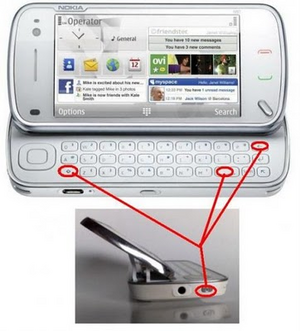
Nokia N8 –
At first, turn off mobile handset. Press and hold these keys at the same time.
Volume down Key + Camera Key + Menu Key + Press Power button until the phone vibrates.
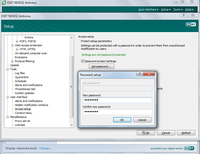
Reset codes of all Samsung mobile handset -
If we have forgotten Samsung mobile code, then don’t be worried. A useful reset code can be used to recover quickly.
- At first, turn off mobile handset.
- Now we have to remove the SIM from handset.
- Switch on the mobile handset without SIM.
- Insert the code – *2767*637# (it is used to reset Mobile tracker code)
*2767*3855# – (it is used to reset all type of mobile code).
We can attempt to apply these codes in case of downloading java files, or media (video, MP3, Image) is not working properly.
- *2767*JAVA# - java Reset
- *2767*MEDIA# – Reset Media (it will remove MP3 and pictures from internal memory)
- *2767*WAP# – WAP Reset ( It will reset handset Internet setting)
- *2767*CUST# – Reset Custom EEPROM ( resetting Internal Memory)
- *2767*FULL# – Reset Full EEPROM ( Full format of internal memory)
LG handset reset code –
For performing resetting factory operation in maximum LG handset,
dial this code – 2945#*#
or
Dial #PWE668 ( PWE = Power button of handset)
Google Android phone reset codes –
For android phone factory data reset
Press this code- *#*#7780#*#*-
When we insert it, next screen will ask to click on Reset phone option.
Caution -
if we want to withdraw from this operation then click on cancel button.
This code is used to perform android factory reset completely. It will delete entire apps and phone settings such as -
- Google account setting
- Settings of software and phone
- All downloaded apps
2. Press *2767*3855# -
It is used to perform factory format and reinstall the phone firmware again. Now it will delete completely internal phone memory settings and data.
Caution -
Once we insert this code, there is no option to avoid from format factory operations. So try to remove phone battery quickly to stop it.
Micromax Mobile Reset factory Code
for all Micromax handset , press this code - *#8929#
Micromax X313 handset – *#73738#
or
A useful tips to perform Hard Reset to Micromax mobile -
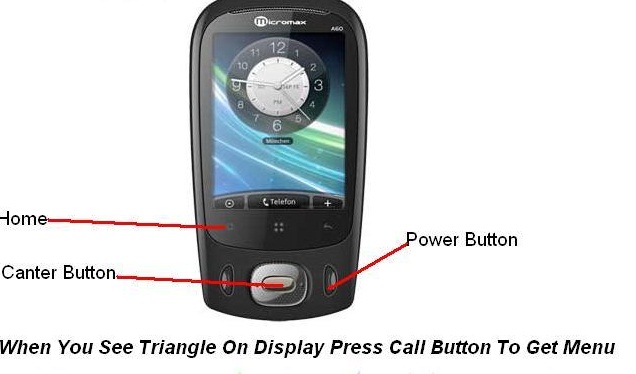
Micromax X660 Handset Reset process -
- At first format your phone memory and then go to factory reset option inside the phone.
- Type 0000 or 1234 then your phone will be formatted instantly.
- Make ensuring that before performing actions of phone format note your entire phone contact numbers or moved it in another SIM card.
How to make your computer run faster ???
How to make your computer run faster ???
1. Remove spyware, and help protect your computer from viruses Spyware collects personal information without asking for permission. From the websites you visit to user names and passwords, spyware can put you and your confidential information at risk. In addition to compromising your privacy, spyware can hamper your computer's performance. Fortunately, there are a couple of easy ways to combat spyware. Download Microsoft Security Essentials for free to help guard your system from viruses, spyware, adware, and other malicious software (also known as malware). Microsoft Security Essentials acts as a spyware removal tool and includes automatic updates to help keep your system protected from emerging threats. The Microsoft Windows Malicious Software Removal Tool, also free, checks computers running Windows 8, Windows 7, Windows Vista, Windows XP, Windows 2000, Windows Server 2012, Windows Server 2008, and Windows Server 2003 for infections by specific, prevalent malicious software, including Folstart, Phorpiex, Weelsof, Blaster, Sasser, and Mydoom. It helps remove any detected infection or malware.
2. Free up disk space The Disk Cleanup tool helps you to free up space on your hard disk to improve the performance of your computer. The tool identifies files that you can safely delete and lets you choose to delete some, all, or none of the identified files. Use Disk Cleanup to: Remove temporary Internet files. Delete downloaded program files, such as Microsoft ActiveX controls and Java applets. Empty the Recycle Bin. Remove Windows temporary files, such as error reports. Delete optional Windows components that you don't use. Delete installed programs that you no longer use. Remove unused restore points and shadow copies from System Restore. Delete system files (Windows 8). Tip: Typically, temporary Internet files take the most amount of space because the browser caches each page you visit for faster access later. To use Disk Cleanup: Windows 8 users Windows 7 users Windows Vista users Windows XP users
3. Speed up access to data Disk fragmentation slows the overall performance of your system. When files are fragmented, the computer must search the hard disk as a file is opened (to piece it back together). The response time can be significantly longer. Optimize Drives (Windows 8) and Disk Defragmenter (sometimes shortened to Defrag by users) are Windows utilities that consolidate fragmented files and folders on your computer's hard disk so that each occupies a single space on the disk. With your files stored neatly end to end, without fragmentation, reading and writing to the disk speeds up. When to run Optimize Drives or Disk Defragmenter In addition to running these utilities at regular intervals (weekly is optimal), there are other times you should run it, too, such as when: You add a large number of files. Your free disk space totals 15 percent or less. You install new programs or a new version of the Windows operating system. To use Optimize Drives: Open Optimize Drives by swiping in from the right edge of the screen, tapping Search (or if you're using a mouse, pointing to the upper-right corner of the screen, moving the mouse pointer down, and then clicking Search), entering Defragment in the search box, tapping or clicking Settings, and then tapping or clicking Defragment and optimize your drives. Under Status, tap or click the drive you want to optimize. (The Media type column tells you what type of drive you're optimizing.) To determine if the drive needs to be optimized, tap or click Analyze. You might be asked for an admin password or to confirm your choice. After Windows is finished analyzing the drive, check the Current status column to see whether you need to optimize the drive. If the drive is more than 10% fragmented, you should optimize the drive now. Tap or click Optimize. You might be asked for an admin password or to confirm your choice. Optimizing a drive might take anywhere from several minutes to a few hours to finish, depending on the size of the drive and degree of optimization needed. You can still use your PC during the optimization process. Notes If the drive is being used by another program, or is formatted using a file system other than NTFS, FAT, or FAT32, it can't be optimized. Network drives can't be optimized. If a drive isn't appearing in Optimize Drives, it might be because it contains an error. Try to repair the drive first, then return to Optimize Drives to try again. Additional information and instruction to optimize your hard drive for Windows 8 is available. To use Disk Defragmenter: Windows 7 users Windows Vista users Windows XP users Running Optimize Drives, Disk Cleanup, and Disk Defragmenter on a regular basis is a proven way to help keep your computer running quickly and efficiently. If you'd like to learn how to schedule these tools and others to run automatically, please read Speed up your PC: Automate your computer maintenance schedule. Windows 8 users should read Improve performance by optimizing your hard drive.
4. Detect and repair disk errors In addition to running Optimize Drives, Disk Cleanup, and Disk Defragmenter to optimize the performance of your computer, you can check the integrity of the files stored on your hard disk by running the Error Checking utility. As you use your hard drive, it can develop bad sectors. Bad sectors slow down hard disk performance and sometimes make data writing (such as file saving) difficult or even impossible. The Error Checking utility scans the hard drive for bad sectors and scans for file system errors to see whether certain files or folders are misplaced. If you use your computer daily, you should run this utility once a week to help prevent data loss. Run the Error Checking utility:
5. Learn about ReadyBoost If you're using Windows 8, Windows 7, or Windows Vista, you can use ReadyBoost to speed up your system. A new concept in adding memory to a system, it allows you to use non-volatile flash memory—like a USB flash drive or a memory card—to improve performance without having to add additional memory. With Windows 8, if you have a storage device that will work with ReadyBoost, you’ll see an option to use ReadyBoost when you plug the device in to your PC. Learn more about ReadyBoost in Windows 7. Learn more about ReadyBoost in Windows Vista.
6. Upgrade to Windows 8 If you try all the previous remedies and your computer still isn't as fast as you would like it to be, you may want to consider updating to Windows 8. Download the Upgrade Assistant to find out if your computer can run Windows 8. Download Windows 8 Pro. Compare Windows 8 editions. If the Windows 8 Upgrade Assistant determines that your computer can't run Windows 8 and you still have the need for speed, it might be time for a new computer. There are some great deals on new computers right now:
1. Remove spyware, and help protect your computer from viruses Spyware collects personal information without asking for permission. From the websites you visit to user names and passwords, spyware can put you and your confidential information at risk. In addition to compromising your privacy, spyware can hamper your computer's performance. Fortunately, there are a couple of easy ways to combat spyware. Download Microsoft Security Essentials for free to help guard your system from viruses, spyware, adware, and other malicious software (also known as malware). Microsoft Security Essentials acts as a spyware removal tool and includes automatic updates to help keep your system protected from emerging threats. The Microsoft Windows Malicious Software Removal Tool, also free, checks computers running Windows 8, Windows 7, Windows Vista, Windows XP, Windows 2000, Windows Server 2012, Windows Server 2008, and Windows Server 2003 for infections by specific, prevalent malicious software, including Folstart, Phorpiex, Weelsof, Blaster, Sasser, and Mydoom. It helps remove any detected infection or malware.
2. Free up disk space The Disk Cleanup tool helps you to free up space on your hard disk to improve the performance of your computer. The tool identifies files that you can safely delete and lets you choose to delete some, all, or none of the identified files. Use Disk Cleanup to: Remove temporary Internet files. Delete downloaded program files, such as Microsoft ActiveX controls and Java applets. Empty the Recycle Bin. Remove Windows temporary files, such as error reports. Delete optional Windows components that you don't use. Delete installed programs that you no longer use. Remove unused restore points and shadow copies from System Restore. Delete system files (Windows 8). Tip: Typically, temporary Internet files take the most amount of space because the browser caches each page you visit for faster access later. To use Disk Cleanup: Windows 8 users Windows 7 users Windows Vista users Windows XP users
3. Speed up access to data Disk fragmentation slows the overall performance of your system. When files are fragmented, the computer must search the hard disk as a file is opened (to piece it back together). The response time can be significantly longer. Optimize Drives (Windows 8) and Disk Defragmenter (sometimes shortened to Defrag by users) are Windows utilities that consolidate fragmented files and folders on your computer's hard disk so that each occupies a single space on the disk. With your files stored neatly end to end, without fragmentation, reading and writing to the disk speeds up. When to run Optimize Drives or Disk Defragmenter In addition to running these utilities at regular intervals (weekly is optimal), there are other times you should run it, too, such as when: You add a large number of files. Your free disk space totals 15 percent or less. You install new programs or a new version of the Windows operating system. To use Optimize Drives: Open Optimize Drives by swiping in from the right edge of the screen, tapping Search (or if you're using a mouse, pointing to the upper-right corner of the screen, moving the mouse pointer down, and then clicking Search), entering Defragment in the search box, tapping or clicking Settings, and then tapping or clicking Defragment and optimize your drives. Under Status, tap or click the drive you want to optimize. (The Media type column tells you what type of drive you're optimizing.) To determine if the drive needs to be optimized, tap or click Analyze. You might be asked for an admin password or to confirm your choice. After Windows is finished analyzing the drive, check the Current status column to see whether you need to optimize the drive. If the drive is more than 10% fragmented, you should optimize the drive now. Tap or click Optimize. You might be asked for an admin password or to confirm your choice. Optimizing a drive might take anywhere from several minutes to a few hours to finish, depending on the size of the drive and degree of optimization needed. You can still use your PC during the optimization process. Notes If the drive is being used by another program, or is formatted using a file system other than NTFS, FAT, or FAT32, it can't be optimized. Network drives can't be optimized. If a drive isn't appearing in Optimize Drives, it might be because it contains an error. Try to repair the drive first, then return to Optimize Drives to try again. Additional information and instruction to optimize your hard drive for Windows 8 is available. To use Disk Defragmenter: Windows 7 users Windows Vista users Windows XP users Running Optimize Drives, Disk Cleanup, and Disk Defragmenter on a regular basis is a proven way to help keep your computer running quickly and efficiently. If you'd like to learn how to schedule these tools and others to run automatically, please read Speed up your PC: Automate your computer maintenance schedule. Windows 8 users should read Improve performance by optimizing your hard drive.
4. Detect and repair disk errors In addition to running Optimize Drives, Disk Cleanup, and Disk Defragmenter to optimize the performance of your computer, you can check the integrity of the files stored on your hard disk by running the Error Checking utility. As you use your hard drive, it can develop bad sectors. Bad sectors slow down hard disk performance and sometimes make data writing (such as file saving) difficult or even impossible. The Error Checking utility scans the hard drive for bad sectors and scans for file system errors to see whether certain files or folders are misplaced. If you use your computer daily, you should run this utility once a week to help prevent data loss. Run the Error Checking utility:
5. Learn about ReadyBoost If you're using Windows 8, Windows 7, or Windows Vista, you can use ReadyBoost to speed up your system. A new concept in adding memory to a system, it allows you to use non-volatile flash memory—like a USB flash drive or a memory card—to improve performance without having to add additional memory. With Windows 8, if you have a storage device that will work with ReadyBoost, you’ll see an option to use ReadyBoost when you plug the device in to your PC. Learn more about ReadyBoost in Windows 7. Learn more about ReadyBoost in Windows Vista.
6. Upgrade to Windows 8 If you try all the previous remedies and your computer still isn't as fast as you would like it to be, you may want to consider updating to Windows 8. Download the Upgrade Assistant to find out if your computer can run Windows 8. Download Windows 8 Pro. Compare Windows 8 editions. If the Windows 8 Upgrade Assistant determines that your computer can't run Windows 8 and you still have the need for speed, it might be time for a new computer. There are some great deals on new computers right now:
How to Make Your Internet Go Faster ?
How to Make Your Internet Go Faster ?
1
Remove all viruses, spyware, and malware inside your computer. They slow down your computer and also steal your identity such as passwords or credit card numbers, so be sure to remove those!
Ads by Google
Create 100% Free Website Ad-Free, Unlimited Storage, Mobile Website & more... Try Today!
zoho.com/sites
2
Clean up your memory. Try to delete non-useful programs and files inside your hard drive such as expired forms and damaged games. Also, try clearing out your computer's physical memory. This allows more temporary memories to be stored. This allows more information from the internet to be stored inside your computer, so it could work faster! Upgrading your RAM can also help.
3
Fix any problems you may have in your computer! These errors and damages cause a huge problem for your computer, so your central process unit (CPU) cannot work properly and will result in a slow process for programs, including your Internet Explorer.
4
Download programs that can speed your computer up. Not only that this can help your Internet run faster, but can also improve your whole computer such as gaming quality and copying and pasting files.
5
Upgrade your system and web browser! If you are experiencing problems (not just speed but other things) such as lag in gaming or the web browser not responding, try upgrading your web browser to the newest version! This will improve your internet speed a lot. Also, download the newest version of your computer. These newer versions will reduce the consumption of space in your hard drive and your RAM, so you can access the internet more quickly than you did before.
1. Problem Steps Recorder ?
1. Problem Steps Recorder ?
As the local PC guru you're probably very used to friends and family asking for help with their computer problems, yet having no idea how to clearly describe what's going on. It's frustrating, but Microsoft feels your pain, and Windows 7 will include an excellent new solution in the Problem Steps Recorder.
When any app starts misbehaving under Windows 7 then all your friends need do is click Start, type PSR and press Enter, then click Start Record. If they then work through whatever they're doing then the Problem Steps Recorder will record every click and keypress, take screen grabs, and package everything up into a single zipped MHTML file when they're finished, ready for emailing to you. It's quick, easy and effective, and will save you hours of troubleshooting time.
Answers Of Problem Windows 7 ?
Answers Of Problem Windows 7 ?
3. Create and mount VHD files Microsoft's Virtual PC creates its virtual machine hard drives in VHD files, and Windows 7 can now mount these directly so you can access them in the host system. Click Start, type diskmgmt.msc and press Enter, then click Action > Attach VHD and choose the file you'd like to mount. It will then appear as a virtual drive in Explorer and can be accessed, copied or written just like any other drive. Click Action > Create VHD and you can now create a new virtual drive of your own (right-click it, select Initialise Disk, and after it's set up right-click the unallocated space and select New Simple Volume to set this up). Again, you'll be left with a virtual drive that behaves just like any other, where you can drag and drop files, install programs, test partitioning software or do whatever you like. But it's actually just this VHD file on your real hard drive which you can easily back up or share with others. Right-click the disk (that's the left-hand label that says "Disk 2" or whatever) and select Detach VHD to remove it. The command line DISKPART utility has also been upgraded with tools to detach a VHD file, and an EXPAND command to increase a virtual disk's maximum size. Don't play around with this unless you know what you're doing, though - it's all too easy to trash your system.
4. Troubleshoot problems If some part of Windows 7 is behaving strangely, and you don't know why, then click Control Panel > Find and fix problems (or 'Troubleshooting') to access the new troubleshooting packs. These are simple wizards that will resolve common problems, check your settings, clean up your system and more.
5. Startup repair If you've downloaded Windows 7 (and even if you haven't) it's a good idea to create a system repair disc straight away in case you run into problems booting the OS later on. Click Start > Maintenance > Create a System Repair Disc, and let Windows 7 build a bootable emergency disc. If the worst does happen then it could be the only way to get your PC running again.
6. Take control Tired of the kids installing dubious software or running applications you'd rather they left alone? AppLocker is a new Windows 7 feature that ensures users can only run the programs you specify. Don't worry, that's easier to set up than it sounds: you can create a rule to allow everything signed by a particular publisher, so choose Microsoft, say, and that one rule will let you run all signed Microsoft applications. Launch GPEDIT.MSC and go to Computer Configuration > Windows Settings > Security Settings > Application Control Policies > AppLocker to get a feel for how this works.
7. Calculate more At first glance the Windows 7 calculator looks just like Vista's version, but explore the Mode menu and you'll see powerful new Statistics and Programmer views. And if you're clueless about bitwise manipulation, then try the Options menu instead. This offers many different unit conversions (length, weight, volume and more), date calculations (how many days between two dates?), and spreadsheet-type templates to help you calculate vehicle mileage, mortgage rates and more. Don't take any Windows 7 applet at face value, then - there are some very powerful new features hidden in the background. Be sure to explore every option in all Windows applets to ensure you don't miss anything important. Digsby IM, Email, and Social Networks in one easy to use application! http://digsby.com Digsby IM, Email, and Social Networks in one easy to use application! http://digsby.com CALCULATE MORE:The new Calculator is packed with useful features and functionality
8. Switch to a projector Windows 7 now provides a standard way to switch your display from one monitor to another, or a projector - just press Win+P or run DisplaySwitch.exe and choose your preferred display. (This will have no effect if you've only one display connected.)
9. Get a power efficiency report If you have a laptop, you can use the efficiency calculator to get Windows 7 to generate loads of useful information about its power consumption. Used in the right way, this can help you make huge gains in terms of battery life and performance. To do this you must open a command prompt as an administrator by typing 'cmd' in Start Search, and when the cmd icon appears, right-click it and choose Run as administrator. Then at the command line, just type in 'powercfg -energy' (without quotes) and hit Return, and Windows 7 will scan your system looking for ways to improve power efficiency. It will then publish the results in an HTML file, usually in the System32 folder. Just follow the path it gives you to find your report.
10. Understanding System Restore Using System Restore in previous versions of Windows has been something of a gamble. There's no way of telling which applications or drivers it might affect - you just have to try it and see. Windows 7 is different. Right-click Computer, select Properties > System Protection > System Restore > Next, and choose the restore point you'd like to use. Click the new button to 'Scan for affected programs' and Windows will tell you which (if any) programs and drivers will be deleted or recovered by selecting this restore point. (Read our full Windows 7 System Restore tutorial.)
11. Set the time zone System administrators will appreciate the new command line tzutil.exe utility, which lets you set a PC's time zone from scripts. If you wanted to set a PC to Greenwich Mean Time, for instance, you'd use the command tzutil /s "gmt standard time" The command "tzutil /g" displays the current time zone, "tzutil /l" lists all possible time zones, and "tzutil /?" displays details on how the command works.
12. Calibrate your screen The colours you see on your screen will vary depending on your monitor, graphics cards settings, lighting and more, yet most people use the same default Windows colour profile. And that means a digital photo you think looks perfect might appear very poor to everybody else. Fortunately Windows 7 now provides a Display Colour Calibration Wizard that helps you properly set up your brightness, contrast and colour settings, and a ClearType tuner to ensure text is crisp and sharp. Click Start, type DCCW and press Enter to give it a try.
13. Clean up Live Essentials Installing Windows Live Essentials will get you the new versions of Mail, Movie Maker, Photo Gallery and others - great. Unfortunately it also includes other components that may be unnecessary, but if you like to keep a clean system then these can be quickly removed. If you left the default "Set your search provider" option selected during installation, for instance, Windows Live will install Choice Guard, a tool to set your browser home page and search engine, and prevent other programs from changing them. If this causes problems later, or you just decide you don't need it, then Choice Guard may be removed by clicking Start, typing msiexec /x {F0E12BBA-AD66-4022-A453-A1C8A0C4D570} and pressing [Enter]. Windows Live Essentials also adds an ActiveX Control to help upload your files to Windows Live SkyDrive, as well as the Windows Live Sign-in Assistant, which makes it easier to manage and switch between multiple Windows Live accounts. If you're sure you'll never need either then remove them with the Control Panel "Uninstall a Program" applet.
14. Add network support By default Windows Live MovieMaker won't let you import files over a network, but a quick Registry tweak will change this. Run REGEDIT, browse to HKEY_CURRENT_USER\Software\Microsoft\Windows Live\Movie Maker, add a DWORD value called AllowNetworkFiles and set it to 1 to add network support.
15. Activate XP mode If you've old but important software that no longer runs under Windows 7, then you could try using XP Mode, a virtual copy of XP that runs in a window on your Windows 7 desktop. But there's a big potential problem, as XP Mode only works with systems that have hardware virtualisation (AMD-V or Intel VT) built-in and turned on. If you've a compatible CPU then this may just be a matter of enabling the option in your BIOS set-up program, however some high profile brands, including Sony Vaio, disable the setting for "security reasons". And that blocks XP Mode from working, too. One solution has emerged, but it's a little risky, as essentially you'll have to alter a byte in your laptop firmware and hope this doesn't have any unexpected side-effects. Gulp. If you're feeling brave then take a look at the Feature Enable Blog for the details, but don't blame us if it goes wrong. A safer approach might be to use VirtualBox, a virtualisation tool that doesn't insist on hardware support, but then you will need to find a licensed copy of XP (or whatever other Windows version your software requires) for its virtual machine.
16. Enable virtual Wi-Fi Windows 7 includes a little-known new feature called Virtual Wi-Fi, which effectively turns your PC or laptop into a software-based router. Any other Wi-Fi-enabled devices within range - a desktop, laptop, an iPod perhaps - will "see" you as a new network and, once logged on, immediately be able to share your internet connection. This will only work if your wireless adapter driver supports it, though, and not all do. Check with your adapter manufacturer and make sure you've installed the very latest drivers to give you the best chance. Once you have driver support then the easiest approach is to get a network tool that can set up virtual Wi-Fi for you. Virtual Router (below) is free, easy to use and should have you sharing your internet connection very quickly. If you don't mind working with the command line, though, maybe setting up some batch files or scripts, then it's not that difficult to set this up manually. See Turn your Windows 7 laptop into a wireless hotspot for more.
17. Recover locked-up apps If an application locks up under a previous version of Windows then there was nothing you could do about it. A new Windows 7 option, however, can not only explain the problem, but may get your program working again without any loss of data. When the lockup occurs, click Start, type RESMON and click the RESMON.EXE link to launch the Resource Monitor. Find your frozen process in the CPU pane (it should be highlighted in red), right-click it and select Analyze Wait Chain. If you see at least two processes in the list, then the lowest, at the end of the tree, is the one holding up your program. If it's not a vital Windows component, or anything else critical, then save any work in other open applications, check the box next to this process, click End Process, and your locked-up program will often spring back to life.
18. Fault-Tolerant Help Windows 7 includes a new feature called the Fault Tolerant Help (FTH), a clever technology that looks out for unstable processes, detects those that may be crashing due to memory issues, and applies several real-time fixes to try and help. If these work, that's fine - if not, the fixes will be undone and they won't be applied to that process again. While this is very good in theory, it can leave you confused as some applications crash, then start working (sometimes) for no apparent reason. So if you'd like to check if the FTH is running on your PC, launch REGEDIT, and go to HKEY_LOCAL_MACHINE\Software\Microsoft\FTH - any program currently being protected by the FTH will be listed in the State key. Experienced users may also try tweaking the FTH settings to catch more problems, and perhaps improve system stability. A post on Microsoft's Ask The Performance Team blog (bit.ly/d1JStu) explains what the various FTH Registry keys mean.
19. Automatically switch your default printer Windows 7's location-aware printing allows the operating system to automatically switch your default printer as you move from one network to another. To set this up, first click Start, type Devices, and click the Devices and Printers link. Select a printer and click Manage Default Printers (this is only visible on a mobile device, like a laptop - you won't see it on a PC). Choose the "Change my default printer when I change networks" option, select a network, the default printer you'd like to use, and click Add. Repeat the process for other networks available, and pick a default printer for each one. And now, as you connect to a new network, Windows 7 will check this list and set the default printer to the one that you've defined.
3. Create and mount VHD files Microsoft's Virtual PC creates its virtual machine hard drives in VHD files, and Windows 7 can now mount these directly so you can access them in the host system. Click Start, type diskmgmt.msc and press Enter, then click Action > Attach VHD and choose the file you'd like to mount. It will then appear as a virtual drive in Explorer and can be accessed, copied or written just like any other drive. Click Action > Create VHD and you can now create a new virtual drive of your own (right-click it, select Initialise Disk, and after it's set up right-click the unallocated space and select New Simple Volume to set this up). Again, you'll be left with a virtual drive that behaves just like any other, where you can drag and drop files, install programs, test partitioning software or do whatever you like. But it's actually just this VHD file on your real hard drive which you can easily back up or share with others. Right-click the disk (that's the left-hand label that says "Disk 2" or whatever) and select Detach VHD to remove it. The command line DISKPART utility has also been upgraded with tools to detach a VHD file, and an EXPAND command to increase a virtual disk's maximum size. Don't play around with this unless you know what you're doing, though - it's all too easy to trash your system.
4. Troubleshoot problems If some part of Windows 7 is behaving strangely, and you don't know why, then click Control Panel > Find and fix problems (or 'Troubleshooting') to access the new troubleshooting packs. These are simple wizards that will resolve common problems, check your settings, clean up your system and more.
5. Startup repair If you've downloaded Windows 7 (and even if you haven't) it's a good idea to create a system repair disc straight away in case you run into problems booting the OS later on. Click Start > Maintenance > Create a System Repair Disc, and let Windows 7 build a bootable emergency disc. If the worst does happen then it could be the only way to get your PC running again.
6. Take control Tired of the kids installing dubious software or running applications you'd rather they left alone? AppLocker is a new Windows 7 feature that ensures users can only run the programs you specify. Don't worry, that's easier to set up than it sounds: you can create a rule to allow everything signed by a particular publisher, so choose Microsoft, say, and that one rule will let you run all signed Microsoft applications. Launch GPEDIT.MSC and go to Computer Configuration > Windows Settings > Security Settings > Application Control Policies > AppLocker to get a feel for how this works.
7. Calculate more At first glance the Windows 7 calculator looks just like Vista's version, but explore the Mode menu and you'll see powerful new Statistics and Programmer views. And if you're clueless about bitwise manipulation, then try the Options menu instead. This offers many different unit conversions (length, weight, volume and more), date calculations (how many days between two dates?), and spreadsheet-type templates to help you calculate vehicle mileage, mortgage rates and more. Don't take any Windows 7 applet at face value, then - there are some very powerful new features hidden in the background. Be sure to explore every option in all Windows applets to ensure you don't miss anything important. Digsby IM, Email, and Social Networks in one easy to use application! http://digsby.com Digsby IM, Email, and Social Networks in one easy to use application! http://digsby.com CALCULATE MORE:The new Calculator is packed with useful features and functionality
8. Switch to a projector Windows 7 now provides a standard way to switch your display from one monitor to another, or a projector - just press Win+P or run DisplaySwitch.exe and choose your preferred display. (This will have no effect if you've only one display connected.)
9. Get a power efficiency report If you have a laptop, you can use the efficiency calculator to get Windows 7 to generate loads of useful information about its power consumption. Used in the right way, this can help you make huge gains in terms of battery life and performance. To do this you must open a command prompt as an administrator by typing 'cmd' in Start Search, and when the cmd icon appears, right-click it and choose Run as administrator. Then at the command line, just type in 'powercfg -energy' (without quotes) and hit Return, and Windows 7 will scan your system looking for ways to improve power efficiency. It will then publish the results in an HTML file, usually in the System32 folder. Just follow the path it gives you to find your report.
10. Understanding System Restore Using System Restore in previous versions of Windows has been something of a gamble. There's no way of telling which applications or drivers it might affect - you just have to try it and see. Windows 7 is different. Right-click Computer, select Properties > System Protection > System Restore > Next, and choose the restore point you'd like to use. Click the new button to 'Scan for affected programs' and Windows will tell you which (if any) programs and drivers will be deleted or recovered by selecting this restore point. (Read our full Windows 7 System Restore tutorial.)
11. Set the time zone System administrators will appreciate the new command line tzutil.exe utility, which lets you set a PC's time zone from scripts. If you wanted to set a PC to Greenwich Mean Time, for instance, you'd use the command tzutil /s "gmt standard time" The command "tzutil /g" displays the current time zone, "tzutil /l" lists all possible time zones, and "tzutil /?" displays details on how the command works.
12. Calibrate your screen The colours you see on your screen will vary depending on your monitor, graphics cards settings, lighting and more, yet most people use the same default Windows colour profile. And that means a digital photo you think looks perfect might appear very poor to everybody else. Fortunately Windows 7 now provides a Display Colour Calibration Wizard that helps you properly set up your brightness, contrast and colour settings, and a ClearType tuner to ensure text is crisp and sharp. Click Start, type DCCW and press Enter to give it a try.
13. Clean up Live Essentials Installing Windows Live Essentials will get you the new versions of Mail, Movie Maker, Photo Gallery and others - great. Unfortunately it also includes other components that may be unnecessary, but if you like to keep a clean system then these can be quickly removed. If you left the default "Set your search provider" option selected during installation, for instance, Windows Live will install Choice Guard, a tool to set your browser home page and search engine, and prevent other programs from changing them. If this causes problems later, or you just decide you don't need it, then Choice Guard may be removed by clicking Start, typing msiexec /x {F0E12BBA-AD66-4022-A453-A1C8A0C4D570} and pressing [Enter]. Windows Live Essentials also adds an ActiveX Control to help upload your files to Windows Live SkyDrive, as well as the Windows Live Sign-in Assistant, which makes it easier to manage and switch between multiple Windows Live accounts. If you're sure you'll never need either then remove them with the Control Panel "Uninstall a Program" applet.
14. Add network support By default Windows Live MovieMaker won't let you import files over a network, but a quick Registry tweak will change this. Run REGEDIT, browse to HKEY_CURRENT_USER\Software\Microsoft\Windows Live\Movie Maker, add a DWORD value called AllowNetworkFiles and set it to 1 to add network support.
15. Activate XP mode If you've old but important software that no longer runs under Windows 7, then you could try using XP Mode, a virtual copy of XP that runs in a window on your Windows 7 desktop. But there's a big potential problem, as XP Mode only works with systems that have hardware virtualisation (AMD-V or Intel VT) built-in and turned on. If you've a compatible CPU then this may just be a matter of enabling the option in your BIOS set-up program, however some high profile brands, including Sony Vaio, disable the setting for "security reasons". And that blocks XP Mode from working, too. One solution has emerged, but it's a little risky, as essentially you'll have to alter a byte in your laptop firmware and hope this doesn't have any unexpected side-effects. Gulp. If you're feeling brave then take a look at the Feature Enable Blog for the details, but don't blame us if it goes wrong. A safer approach might be to use VirtualBox, a virtualisation tool that doesn't insist on hardware support, but then you will need to find a licensed copy of XP (or whatever other Windows version your software requires) for its virtual machine.
16. Enable virtual Wi-Fi Windows 7 includes a little-known new feature called Virtual Wi-Fi, which effectively turns your PC or laptop into a software-based router. Any other Wi-Fi-enabled devices within range - a desktop, laptop, an iPod perhaps - will "see" you as a new network and, once logged on, immediately be able to share your internet connection. This will only work if your wireless adapter driver supports it, though, and not all do. Check with your adapter manufacturer and make sure you've installed the very latest drivers to give you the best chance. Once you have driver support then the easiest approach is to get a network tool that can set up virtual Wi-Fi for you. Virtual Router (below) is free, easy to use and should have you sharing your internet connection very quickly. If you don't mind working with the command line, though, maybe setting up some batch files or scripts, then it's not that difficult to set this up manually. See Turn your Windows 7 laptop into a wireless hotspot for more.
17. Recover locked-up apps If an application locks up under a previous version of Windows then there was nothing you could do about it. A new Windows 7 option, however, can not only explain the problem, but may get your program working again without any loss of data. When the lockup occurs, click Start, type RESMON and click the RESMON.EXE link to launch the Resource Monitor. Find your frozen process in the CPU pane (it should be highlighted in red), right-click it and select Analyze Wait Chain. If you see at least two processes in the list, then the lowest, at the end of the tree, is the one holding up your program. If it's not a vital Windows component, or anything else critical, then save any work in other open applications, check the box next to this process, click End Process, and your locked-up program will often spring back to life.
18. Fault-Tolerant Help Windows 7 includes a new feature called the Fault Tolerant Help (FTH), a clever technology that looks out for unstable processes, detects those that may be crashing due to memory issues, and applies several real-time fixes to try and help. If these work, that's fine - if not, the fixes will be undone and they won't be applied to that process again. While this is very good in theory, it can leave you confused as some applications crash, then start working (sometimes) for no apparent reason. So if you'd like to check if the FTH is running on your PC, launch REGEDIT, and go to HKEY_LOCAL_MACHINE\Software\Microsoft\FTH - any program currently being protected by the FTH will be listed in the State key. Experienced users may also try tweaking the FTH settings to catch more problems, and perhaps improve system stability. A post on Microsoft's Ask The Performance Team blog (bit.ly/d1JStu) explains what the various FTH Registry keys mean.
19. Automatically switch your default printer Windows 7's location-aware printing allows the operating system to automatically switch your default printer as you move from one network to another. To set this up, first click Start, type Devices, and click the Devices and Printers link. Select a printer and click Manage Default Printers (this is only visible on a mobile device, like a laptop - you won't see it on a PC). Choose the "Change my default printer when I change networks" option, select a network, the default printer you'd like to use, and click Add. Repeat the process for other networks available, and pick a default printer for each one. And now, as you connect to a new network, Windows 7 will check this list and set the default printer to the one that you've defined.
Fix a Slow Running PC ?
Fix a Slow Running PC ?
It can be trying to fix your computer runs slow, also many people are fighting for the same problem. It is the same old story, the purchase of a new team, to go for a few months and then it seems that night that the team decides to take his beloved old time burden for any program. This is actually something very frustrating, but there are solutions and attempts to repair a slow computer do not require a degree in computer science.
Repair slow computer needs only some know how and your patience. There are some basic things you can do to significantly accelerate your PC. Here are some to help you on your free much faster way, computer experience of stress.
After the first systematically delete temporary Internet files. These Internet files can be added very quickly as browsing the Web and also about many of these files can slow the performance of the computer. You can easily remove these files by using the disk cleanup tool.
Secondly, to repair a slow computer eliminate elimination programs start. These programs is developed each time you start your computer, wasting valuable time waiting to completely load Windows. This process may take from 5 to 15 minutes! But if several unnecessary programs are disabled when booting the computer, can significantly reduce the time needed to load Windows.
Something I can do to help with the speed of your computer is check and correct all errors on the drive. Everyday errors on the hard drive, the negative impact on the performance of your computer may collect through the team. Simply go to my computer and then click drive c. click Select properties and then tools. Click on the "now" to begin the process. This significantly increases performance.
How to Reset Windows Password ?
How to Reset Windows Password ?
You have the time cannot remember their own window. Password does not matter what you try, you is one of the last article you cannot log in to your Windows account exactly. of we mention how to use the disk for Ubuntu to reset yourself, you can use flash drive for Ubuntu or Windows password and login.
However, If you do not have a flash disk or disk of Ubuntu with you that what you also are your friends, your friends do not have the installation disk for Ubuntu probably in order to obtain How do you? waiting is available, so you cannot. that we, please do not worry guide it you will be able to reset the Windows password without the need for any kind of reset disk for you.
How to reset your password reset disk in a state that does not contain
· To start the PC in case you have a Windows installation disk to use your Windows installation disk
· After the setup file has been loaded select the language, and then click Next
· For, in the appearance of the next window repair your computer option
· You want to repair your notes after you click to select the OS to repair your computer drive name has been installed in this OS, and then click Next
· Click from the list of recovery tools command prompt
· Command prompt, after you open the type ℃: \: \ WINDOWS SYSTEM32 sethc.exe C and then press the Enter key
· After you press Enter the type \ WINDOWS SYSTEM32 sethc.exe: \ WINDOWS SYSTEM32 CMD.EXE C: c for copying / and then press the Enter key
· Type exit, and then exit the command prompt and press the Enter key. .
· Restart the PC and login screen, tap shift 5 times that lead to a command prompt window to pop-up
· Type net user to enter any password of your choice will be replaced with the old password and your user name and.
· Use the new password to exit the command prompt to login to Windows
· 5 keys to move to a sticky with the same trick in accordance with an instruction from the step, and then login to Windows, to be replaced to prevent other users
· 5 At the command prompt step at a time \ WINDOWS SYSTEM32 sethc.exe: \ sethc.exe C: c for copying / and then press the Enter key
· Exit the command prompt, is performed and then restart the PC.
You congratulations, not only has replaced the original function of the shift key, and now not only you can change the password of Windows without the need for a reset disk which is very easy to life.
Do not forget your own commands as you can have the installation disk of Windows you use, as long as you are, do this process for any Windows installation.
Urgent Data Recovery ?
Urgent Data Recovery ?
If you find the position unfortunate and at times awkward having lost some important data and urgently needs the data recovery, find a professional data recovery company to recover the lost data. Urgent recovery of lost data, can normally rely on the expert services of data recovery professionals. With a data recovery expert can expect a free delivery and collection of the memory problem storage device, along with a free assessment. Choose a company of data recovery that does not offer a recovery - no policy for free, but with most data recovery experts can well expect a recovery of more than 90% success rate.
So, if you hear unusual noises that machine or media device, or if the system is not booting up, or perhaps the unit is not in the system or have removed accidentally important files then an expert data recovery is the answer for you. Whatever the reason for the loss of data, most professional data recovery companies strive to recover the data. Data recovery companies will be able to recover the lost data in most cases - such as the loss of the password, the corruption of viruses, sabotage of system and more.
A professional data recovery company will be able to conduct and urgent data on almost all operating systems and damaged recovery media, such as CD and DVD, tapes, disks, and much more. Whatever the memory storage device, from cameras to computers - your chosen data recovery expert should be able to recover the lost data urgent.
Data recovery companies employ teams of experienced and qualified technicians that can solve more problems of data loss. Therefore, if data is accidentally deleted or has experienced some mechanical failures or virus infection, called professional to recover the lost data.
If you need a restoration of urgent data for a criminal case, get a data recovery company professional expert extract and electronic evidence of recovery. A data recovery service can find evidence of books, e-mails, infringement of copyright, theft of trade secrets, employee misconduct, corruption and harassment. Company data recovery to choose will have the team of experts that can enter into a network, system or information storage device and search if it has been altered, damaged, deleted or manipulated.
Thus, whatever their reasons are the loss of data, if you require urgent data recovery for any operating system or media device, select a professional data recovery company to recover the lost files.
Tips For Firefox
Tips For Firefox
Our previous article 5 we mentioned tips to give a different meaning entirely new browsing of Firefox. Hint, also, to facilitate it to browse the Internet, to manage the tab for you Lets use a shortcut.
In this article, I will present some more browsing of Firefox tips and much easier to enjoy browsing in Firefox, that.
1. Open the search for a new Firefox tab:
You are, whenever you want to create a new search must be frustrating always, open a new tab. So now, you can create a search to create a new search in new tab by pressing the key old to enter + not only, please enter the key.
You are, if you want to create a new search tab by default, perform the following steps. :
Type : Set about in the address bar of your browser
The window, as follows: after opening the filter box type browser, search, open in tab.
Double-click the value you want to change this to true.
2. To disable the Close button tab:
So close to the actual Close button, when you open multiple tabs, it can display a tab without closing it by mistake is very difficult. [Close] button so that you can now to, you can customize the Firefox off instead, you can have a single Close button on the right side of the tab bar.
If you are not using the Tab Mix Plus extension, perform the following operations:
· Type : Set about in the address bar of your browser
· By entering, filter browser.tabs.closebuttons
· Set the tab close button on the right side of the tab bar to move the value to which 3.
If you are running Tab Mix Plus extension , and then perform the following steps. :
· Tab Mix Plus opens the option to select / display tab
· Please check the check box of the tab close button to clear the check box
3. To disable tab scrolling of Firefox:
Annoying feature one of the Firefox tabs, tab scrolling is aggregates all are open.
If you're using an extension of the Tab Mix Plus, you will need to use multiple rows of tabs is very useful.
· Tab Mix Plus is moved to an optional tool
· You can also select to display the tabs and drop-down menu changes, from more than one line, you can select the maximum number of rows to display. .
Tab Mix Plus If you are not using an extension, to disable this, perform the following steps. :
· Type : Set about to address bar
· By entering, filter browser.tabs.tabMinWidth
· To disable this feature to set the option of completely 0
4. Tab is commonly used to save space of the tab:
You, the tab is always the same always, if it is open to the other tabs, so as to give more space and take less space they are more open you are, but to reduce them is wise. To do this, you will need to install FaviconizeTab extension.
You can configure this extension in order to reduce the tab based on the URL. .
· Right-click faviconize from the menu
· And auto, enter the URL of the page and leave you faviconize always open in the tab. Select the enable
· The tabs that are commonly used, currently, will be displayed each time you open it as an icon.
5. Shortcut key for closing a specific tab:
If you are using multiple tabs, is done by taking the mouse pointer you instead Close button, to close the tab, you need a quick way. Shortcut to achieve the key is Oshite
In the Ctrl key + the close a particular tab is on the top you.
Maintance Of Pc
Maintance Of Pc
|
Maintaining your computer is the key to keeping it healthy and fully working and of course, fast. Windows 95 has most of the tools for maintaining your PC, but Windows 98 extends the possibilities and makes it even less of a hassle. If you follow the list below and run the programs listed frequently, you will be guaranteed to have a maintained computer at no extra cost. There are, however, other programs in the market with stronger engines, but then again, they're not free (stop smiling...) Most of these programs can be found under the Start, Programs, Accessories, System Tools folder. 1. Disk Defrag: It is advisable to run Defrag under Windows 95 once a month or when you add/remove programs. However, under Windows 98, you can run it every week if you want because it has a new engine, which means that the more you run it, the faster your computer will get. What happens is that your programs are placed on your hard disk in a way so that the ones you use most often are easier for the hard disk to find and run. Make sure that the 'make my programs run faster' is ticked in the 'Settings' window in Defrag. 2. Scandisk: Running a thorough check is good once a month in both Windows 95 and 98. Run this once a month if you feel that your hard disk takes a long time to load programs. A standard check is very fast and checks for basic disk problems concerning files and folders and lost fragments. It takes an average 2 minutes to complete so try running it often. 3. Disk cleanup: This one is good for seeing how much disk space is being used up by unnecessary files that are in the recycle bin, temp folder, or in temporary internet folders. You can then remove them! 4. RegClean: A simple but effective piece of software this is. You can download it for free from Microsoft's web site. It is also available on many magazine cover disks. Reg Clean takes about a minute to check the registry. Then it asks whether you want to clean out redundant or orphan file. This usually helps the computer to get rid of files that have been left behind by uninstalled programs. 5. Windows update: It's a good idea to use Windows Update to make sure your computer has all the latest fixes, patches and updates. You can do so by clicking on its icon in the Start Menu under Windows 98. 6. TweakALL: A very handy program that allows to change settings, which cannot be changed using Windows alone! You can find it in the Utilities Archive. |
Follow these tips and you will definitely have a much faster and more reliable PC! The icon means that the tip will work best under Windows 98.
1. Wallpapers: They slow your whole system down, so if you're willing to compromise, have a basic plain one instead!
2. Drivers: Update your hardware drivers as frequently as possible. New drivers tend to increase system speed especially in the case of graphics cards, their drivers are updated by the manufacturer very frequently!
3. Minimizing: If you want to use several programs at the same time then minimize those you are not using. This helps reduce the overload on RAM.
4. Boot Faster: The 'starting Windows 95/98' message on startup can delay your booting for a couple of seconds. To get rid of this message go to c:\ and find the file Msdos.sys. Remove the Read-Only option. Next, open it in Notepad or any other text editor. Finally, go to the text 'Options' within the file and make the following changes: Add BootDelay=0. To make your booting even faster, set add Logo=0 to remove the Windows logo at startup.
5. Restart only Windows: When restarting your PC, hold down Shift to only restart Windows rather than the whole system which will only take a fraction of the time.
6. Turn Off Animations: Go to Display Settings from the Control Panel and switch to the Effects Tab. Now turn off Show Windows Content While Dragging and Smooth Edges on Screen Fonts. This tip is also helpful with Windows XP because of the various fade/scroll effects.
7. Faster Start-Menu Access: Go to the Start menu and select Run. Now type Regedit and hit Enter. The Registry Editor will appear on the screen. Now, open the folder HKEY_CURRENT_USER\Control Panel\Desktop. You should see a MenuShowDelay value. If you don't then do the following: right click on a blank space in the right pane and select New\String. Change the name in the new value to MenuShowDelay. Now that we have the MenuShowDelay value, double click on it and enter 0 in the value data field. This sets the start menu delay to 0 milliseconds.
8. Resolutions: If you are willing to do anything for faster performance from your PC, then try lowering your display resolution. The lower it is, the faster your PC.
9. Turn off Active Desktop: Go to your Display Properties and switch to the Web tab. Uncheck View My Active Desktop As a Web Page. Since the Active Desktop option under Windows 98 uses a lot of system resources, this option can have a dramatic effect on the speed of the whole system.
10. Defragment Often: Windows 98's Defrag tool uses Application Acceleration from Intel which means that when you defragment your drive, data is physically arranged on the drive so that applications will load faster.
11. Take your PC to Bed: Using the Advanced Power Management feature under Windows 98 gives you the option to use the sleep command. That way, you can send your PC to sleep instead of shutting it down and then restarting it. It's as simple as pressing a button and then pressing the same button to wake it up. You can tell Windows after how many minutes/hours of inactivity to automatically sleep the machine in the Advanced Power Management section of the Control Panel.
12. Faster Internet Access: If you use the internet for reference and the sites you visit are rarely updated then try the following. In IE (the same can be done in Netscape) go to Tools, Internet Options. Next, click on Settings... in the Temporary Internet Files section. Finally, select Never for the first option and double the amount of storage space to use, click OK!
13. Benchmarking: Benchmarking can be very useful when run frequently. It can tell you how your PC's components are performing and then compare them to other machines like yours. For example, when you overclock your PC, you want to know how much more speed you have and whether it is stable. All this and more can be discovered using benchmarking. An excellent piece of software for doing this job is SiSoft Sandra which can be found in the Downloads File Archive!
14. Refresh the Taskbar without restarting: If you in some way change the taskbar, either in Regedit or elsewhere, you can refresh the task bar without restarting. Hold down Ctrl Alt Del, and double click on Explorer. Say Yes to close Explorer, but no to closing Windows. This will refresh the Taskbar and system tray.
15. Quick CD Eject: Instead of pushing the button on your drive, right-click your CD drive letter in My Computer and click on Eject. This will also remove any icons that have become associated with the CD drive.
16. Start Up Programs: Windows can be slowed down when programs run on start up. To eliminate this, check your Start up folder. You can access it from the start menu: Start, Programs, Start Up. Another way to eliminate programs from loading even before Windows actually starts is by doing the following: Click on Start, then Run. Type msconfig. It will take quite a long time for this program to load, but when you finally see it on your screen, explore the different tabs. They all have to do with how quickly your PC boots, so select what you want, and uncheck what you don't want!
17. Fonts: When Windows starts, it loads every single font in the Fonts folder. Therefore, the more fonts you have, the slower the booting process. To get rid of unwanted fonts, simply go to the Fonts folder under c:\windows and remove whatever you don't want. Fonts that have a red letter 'A' as their icon are system fonts, so don't delete them.
18. Stretching Wallpapers: Don't "stretch" your wallpaper in Windows 98 since it actually slows Windows down when you drag icons around on the desktop.
19. RAM Matters: If you have less than 32MB then you should seriously think of upgrading it to at least 64MB. Windows runs much more smoothly with 64MB or higher and tends to use less hard disk space for virtual memory.
20. Partitioning: A very nice little thing you can do to boost system performance. By partitioning your hard drive, splitting one physical drive into several logical ones, you can gain several advantages. 1. If you get a virus or you accidentally format a drive, not all will be lost. 2. By placing the swap file (Win386.swp) on a separate drive, The swap file will be less fragmented and thus, faster. 3. Place Windows on a separate drive and whenever you need to reinstall it, you rest assured that your data is safe on a separate drive. Partitioning can be done using a few programs such as FDisk which comes with DOS. However, FDisk formats everything on the hard disk before partitioning. Alternatively, you can use Partition Magic from Power Quest to partition your hard disk without losing your data.
1. Wallpapers: They slow your whole system down, so if you're willing to compromise, have a basic plain one instead!
2. Drivers: Update your hardware drivers as frequently as possible. New drivers tend to increase system speed especially in the case of graphics cards, their drivers are updated by the manufacturer very frequently!
3. Minimizing: If you want to use several programs at the same time then minimize those you are not using. This helps reduce the overload on RAM.
4. Boot Faster: The 'starting Windows 95/98' message on startup can delay your booting for a couple of seconds. To get rid of this message go to c:\ and find the file Msdos.sys. Remove the Read-Only option. Next, open it in Notepad or any other text editor. Finally, go to the text 'Options' within the file and make the following changes: Add BootDelay=0. To make your booting even faster, set add Logo=0 to remove the Windows logo at startup.
5. Restart only Windows: When restarting your PC, hold down Shift to only restart Windows rather than the whole system which will only take a fraction of the time.
6. Turn Off Animations: Go to Display Settings from the Control Panel and switch to the Effects Tab. Now turn off Show Windows Content While Dragging and Smooth Edges on Screen Fonts. This tip is also helpful with Windows XP because of the various fade/scroll effects.
7. Faster Start-Menu Access: Go to the Start menu and select Run. Now type Regedit and hit Enter. The Registry Editor will appear on the screen. Now, open the folder HKEY_CURRENT_USER\Control Panel\Desktop. You should see a MenuShowDelay value. If you don't then do the following: right click on a blank space in the right pane and select New\String. Change the name in the new value to MenuShowDelay. Now that we have the MenuShowDelay value, double click on it and enter 0 in the value data field. This sets the start menu delay to 0 milliseconds.
8. Resolutions: If you are willing to do anything for faster performance from your PC, then try lowering your display resolution. The lower it is, the faster your PC.
9. Turn off Active Desktop: Go to your Display Properties and switch to the Web tab. Uncheck View My Active Desktop As a Web Page. Since the Active Desktop option under Windows 98 uses a lot of system resources, this option can have a dramatic effect on the speed of the whole system.
10. Defragment Often: Windows 98's Defrag tool uses Application Acceleration from Intel which means that when you defragment your drive, data is physically arranged on the drive so that applications will load faster.
11. Take your PC to Bed: Using the Advanced Power Management feature under Windows 98 gives you the option to use the sleep command. That way, you can send your PC to sleep instead of shutting it down and then restarting it. It's as simple as pressing a button and then pressing the same button to wake it up. You can tell Windows after how many minutes/hours of inactivity to automatically sleep the machine in the Advanced Power Management section of the Control Panel.
12. Faster Internet Access: If you use the internet for reference and the sites you visit are rarely updated then try the following. In IE (the same can be done in Netscape) go to Tools, Internet Options. Next, click on Settings... in the Temporary Internet Files section. Finally, select Never for the first option and double the amount of storage space to use, click OK!
13. Benchmarking: Benchmarking can be very useful when run frequently. It can tell you how your PC's components are performing and then compare them to other machines like yours. For example, when you overclock your PC, you want to know how much more speed you have and whether it is stable. All this and more can be discovered using benchmarking. An excellent piece of software for doing this job is SiSoft Sandra which can be found in the Downloads File Archive!
14. Refresh the Taskbar without restarting: If you in some way change the taskbar, either in Regedit or elsewhere, you can refresh the task bar without restarting. Hold down Ctrl Alt Del, and double click on Explorer. Say Yes to close Explorer, but no to closing Windows. This will refresh the Taskbar and system tray.
15. Quick CD Eject: Instead of pushing the button on your drive, right-click your CD drive letter in My Computer and click on Eject. This will also remove any icons that have become associated with the CD drive.
16. Start Up Programs: Windows can be slowed down when programs run on start up. To eliminate this, check your Start up folder. You can access it from the start menu: Start, Programs, Start Up. Another way to eliminate programs from loading even before Windows actually starts is by doing the following: Click on Start, then Run. Type msconfig. It will take quite a long time for this program to load, but when you finally see it on your screen, explore the different tabs. They all have to do with how quickly your PC boots, so select what you want, and uncheck what you don't want!
17. Fonts: When Windows starts, it loads every single font in the Fonts folder. Therefore, the more fonts you have, the slower the booting process. To get rid of unwanted fonts, simply go to the Fonts folder under c:\windows and remove whatever you don't want. Fonts that have a red letter 'A' as their icon are system fonts, so don't delete them.
18. Stretching Wallpapers: Don't "stretch" your wallpaper in Windows 98 since it actually slows Windows down when you drag icons around on the desktop.
19. RAM Matters: If you have less than 32MB then you should seriously think of upgrading it to at least 64MB. Windows runs much more smoothly with 64MB or higher and tends to use less hard disk space for virtual memory.
20. Partitioning: A very nice little thing you can do to boost system performance. By partitioning your hard drive, splitting one physical drive into several logical ones, you can gain several advantages. 1. If you get a virus or you accidentally format a drive, not all will be lost. 2. By placing the swap file (Win386.swp) on a separate drive, The swap file will be less fragmented and thus, faster. 3. Place Windows on a separate drive and whenever you need to reinstall it, you rest assured that your data is safe on a separate drive. Partitioning can be done using a few programs such as FDisk which comes with DOS. However, FDisk formats everything on the hard disk before partitioning. Alternatively, you can use Partition Magic from Power Quest to partition your hard disk without losing your data.
Subscribe to:
Comments (Atom)